
Resize Fit Modes On Download
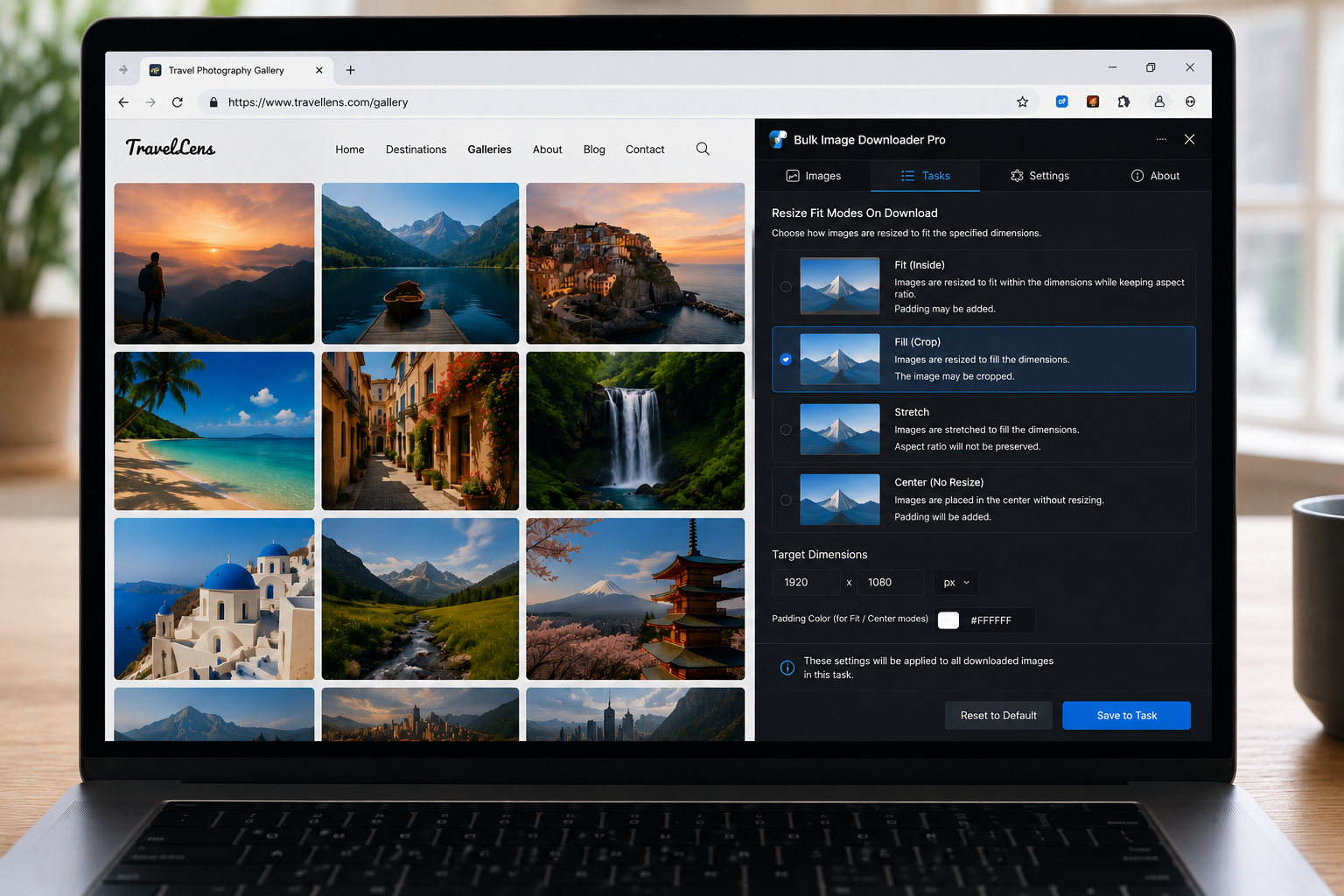
Downloading a large batch first and resizing everything later adds another tool, another folder, and another chance to lose track of files. If the final images need web, CMS, thumbnail, or delivery dimensions, it is often better to resize images on download.
Bulk Image Downloader From URL List provides resize controls per task on the options page. The processing runs as part of the download workflow, so the saved files are produced at the size and format you set for that task.
Set the target size for the task
The resize controls let you enter a max width, a max height, or both. Leave one side automatic when you want the extension to preserve proportions around the dimension that matters most.
This is useful for reducing oversized source images before they land in a project folder.
Choose the right fit mode
Fit Inside preserves the whole image and keeps it within the size limits. It is the safest choice for mixed aspect ratios, galleries, reference images, and product photos where cropping would be a problem.
Cover fills the requested box and may crop. Use it for uniform thumbnails or tiles. Fill stretches to the exact dimensions and can distort images, so reserve it for cases where exact width and height matter more than natural proportions.
Pick an output format and quality
Resize output can be JPEG, WebP, or PNG. JPEG is a practical default for photos, WebP is useful for modern web delivery, and PNG is best when lossless output or transparency matters.
The quality slider controls compression for processed output. Test a small sample before running a large job, especially when images will be used on product pages or prominent web sections.
Understand resize versus convert
Resize and Convert are separate task modes. If both are enabled, the extension keeps the processing path to one active mode for predictable output.
When you enable resize, you can still choose the resized output format. Use the dedicated Convert option when your only goal is a format change at the existing dimensions.
A practical resize workflow
- Paste or import the image URLs into a task.
- Enable resize processing for that task.
- Enter max width and/or max height.
- Choose Fit Inside, Cover, or Fill based on whether cropping or stretching is acceptable.
- Select JPEG, WebP, or PNG and set quality.
- Run a small sample, then process the full list.
For format-only processing, read convert image format on download. For metadata cleanup, see strip EXIF metadata on download.
You can apply the same approach in Bulk Image Downloader From URL List: collect the URLs, filter what you do not need, then download only the useful files.
Bulk Image Downloader From URL List keeps this workflow inside Chrome so you can filter, rename, and download from one place.