
Download reference images for 3D texturing from a URL list
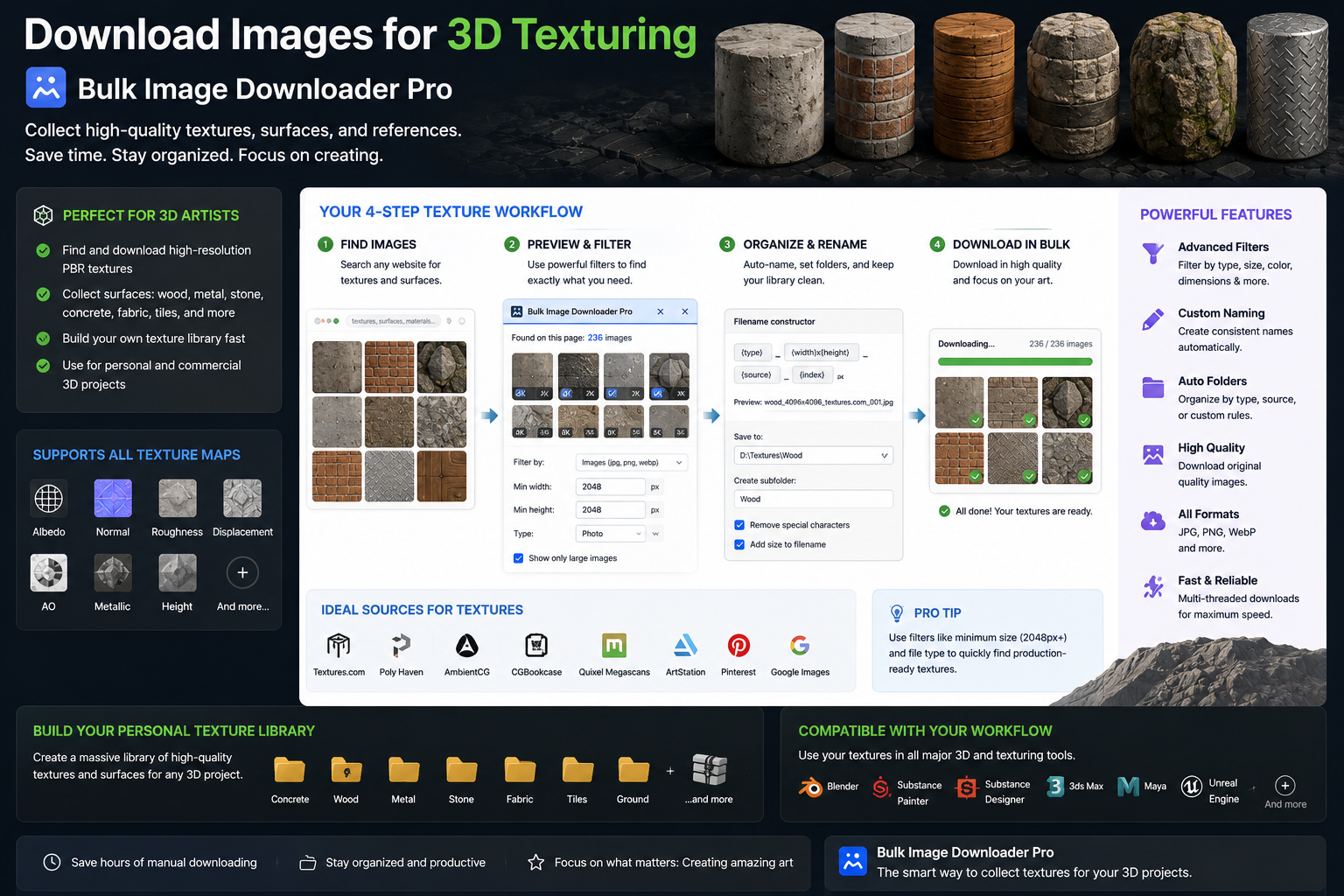
A believable material needs more than one photo: base color, worn edges, grime in crevices, and close-up detail for normal and roughness work. Texture artists collect hundreds of surface references, and the bottleneck is usually wrangling source files—not Substance Painter or Blender itself. To download images for 3D texturing efficiently, you need high-resolution plates, duplicates removed, and folders organized by material before import.
Bulk Image Downloader From URL List scrapes reference galleries, filters unusable previews, and processes plates locally in Chrome.
Step 1: collect only references you may use
Start from permitted sources:
- photos you shot yourself (process via Upload Mode in local IndexedDB)
- texture libraries and stock sites whose license explicitly allows download and derivative work
- reference pages that grant reuse for personal or commercial projects
This tool gathers files quickly; it does not grant rights to copyrighted surfaces. When in doubt, use your own captures or a licensed pack.
Step 2: pull high-resolution plates from galleries
A 400 px preview is useless as a detail source. Open a texture or photo gallery in Chrome, run the side-panel scraper, and switch to Deep Scan when thumbnails lazy-load on scroll. Set a minimum width before download—2048 px is a practical floor for 2K texture work; raise it when you need 4K source.
For a saved list of go-to reference pages, paste URLs into Bulk URL scrape and review every surface in one grid pass instead of right-clicking each plate.
Step 3: filter to the surfaces you actually need
- dimension filters drop preview thumbnails and icon-sized assets
- aspect ratio favors near-square tileable shots over wide scenics you cannot seam
- text in URL scopes a pull to keywords like
concrete,rust, orfabric - file type keeps photographs and skips stray SVG logos on gallery index pages
Table view shows width, height, and format side by side so you reject unusable previews before committing to a download.
Step 4: dedupe tiled and re-hosted references
Stock sites repost the same concrete wall at slightly different sizes. URL deduplication clears exact repeats; the perceptual duplicate finder groups visual twins across different URLs. Review clusters and keep the highest-resolution copy per surface, then remove the rest from the task. A curated library beats a folder of twelve near-identical rust plates.
Step 5: prep plates on download
Light prep before import saves time in your texturing app:
- convert to PNG in a dedicated task when you want lossless source for detail extraction
- resize in a separate task when you need a standard plate size—resize and convert are mutually exclusive per task
- EXIF strip keeps orientation predictable on import
Output formats are JPEG, WebP, and PNG; there is no AVIF conversion output. Processing runs in Web Workers locally—large plates never upload to a server.
Step 6: organize the material library
- Filename Constructor tokens like
brick-wall-03make midnight deadline searches faster - Auto Folders nests downloads by material type or source domain
- save scan filters and naming as a Saved Rule so each new hunt drops into the same structure
Tier note
Basic (Free) supports URL-list downloads. Resize, convert, duplicate finder, and Auto Folders need Try PRO or Licensed PRO.
Install it when reference gathering should take minutes, not an afternoon of manual saves.
Continue reading: Download Images for Scientific Figures.