
Process Local Images in Chrome
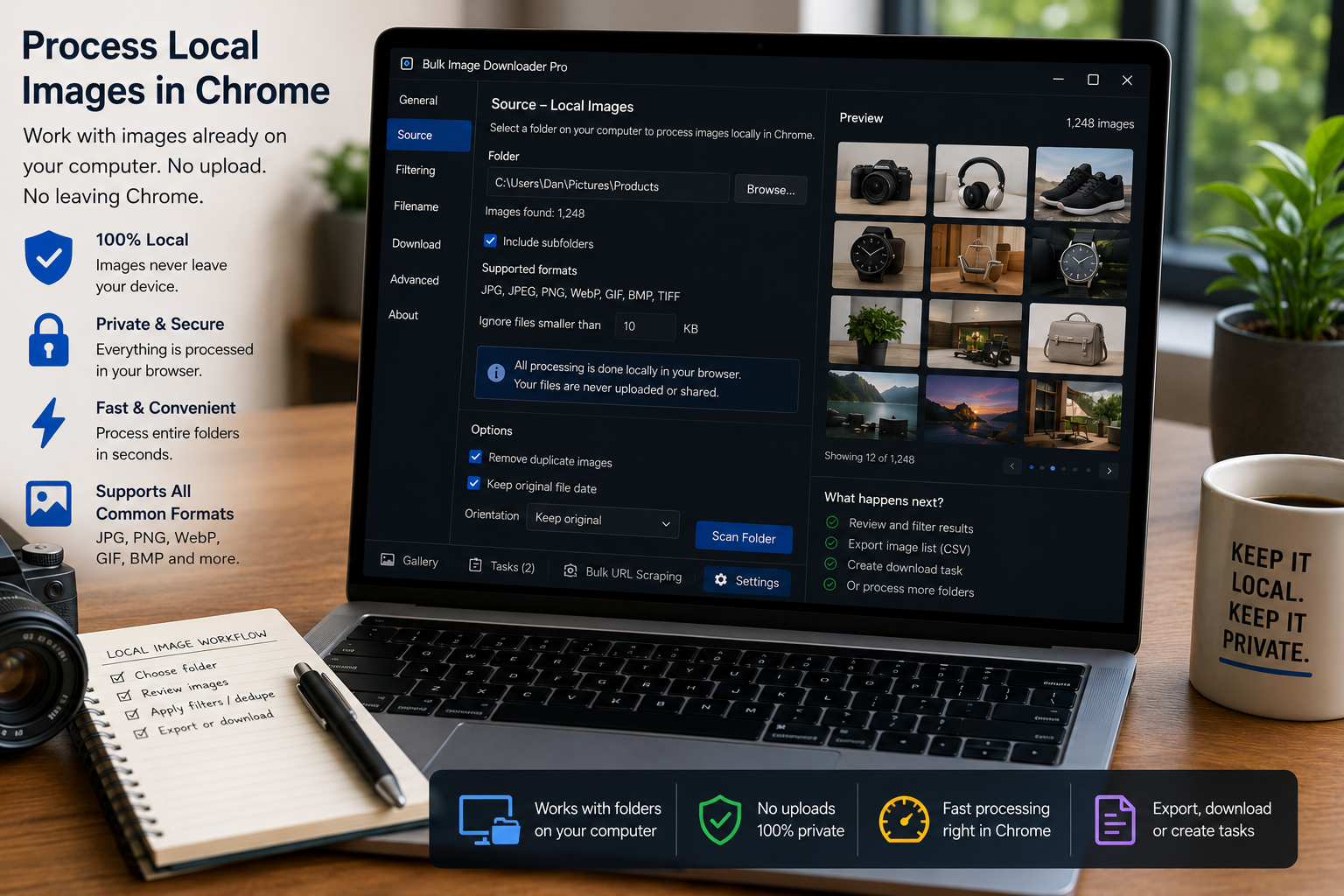
Not every image job starts with a URL list. Sometimes the files are already on your computer and you just need to resize, convert, watermark, rename, or clean them in a batch. Upload Mode lets you process local images in Chrome using the same task workflow you use for downloaded images.
In Bulk Image Downloader From URL List, each task can switch between URL input and local file upload input.
Switch a task to Upload Mode
Use Switch to Upload Mode on a task to replace the URL textarea with a local file drop zone. You can drag images into the task or choose them with the file picker.
The task stores uploaded files locally in the browser profile, then lets you process and download the output files from that task.
Use the same processing tools
Upload Mode can use the processing tools that make sense for local files: resize, convert, Strip EXIF, watermarking, custom filenames, filename cleanup, ZIP output, folders, and task status/reporting.
This is useful when you already have a folder of images and do not want to upload them to a separate website just to batch process them.
Know what changes in local-file mode
Some URL-specific options are disabled because local files do not have a source URL. Domain-based folders, URL-fragment folders, and URL-derived filename parts are not available in the same way.
Download IF rules can still be useful because they can apply to uploaded filenames.
Use View Files and clear uploads deliberately
View Files lets you inspect the uploaded file list inside the task. If you need to return to URL mode, remove uploaded files first; the extension blocks switching back while the task still has stored uploaded files.
That safeguard helps avoid losing track of which input mode the task is using.
A practical local-image workflow
- Create a task and switch it to Upload Mode.
- Drag local images into the file area or choose them with the file picker.
- Use View Files to confirm the set.
- Turn on resize, convert, watermarking, EXIF cleanup, or naming settings as needed.
- Draft Save the task.
- Run the task and download the processed output.
For resizing settings, read resize images on download. For CSV task backups, see back up image download tasks to CSV.
Turning a disorganised list of sources into a filtered, named download set is the core use case.
There is no app switching: filtering, renaming, and downloading live in a single Chrome window.
What “local” actually means for your files
Upload Mode keeps the work on your machine, and two behaviours follow from that. Downloads, drafts, and AI files stay on the computer — the extension does not record what you download, and signing in is only used to check your license. If you process the same local pictures with AI, clearing AI data removes local AI batches, library files, and queued AI data, but only for the current Chrome profile; Incognito and other profiles keep their own copies.
That has a practical edge when a machine is shared. Cleaning up in your profile does not reach another profile’s queued work, so a second person’s pending batch is not something your cleanup can disturb — or rescue.