
Export Image URLs to CSV
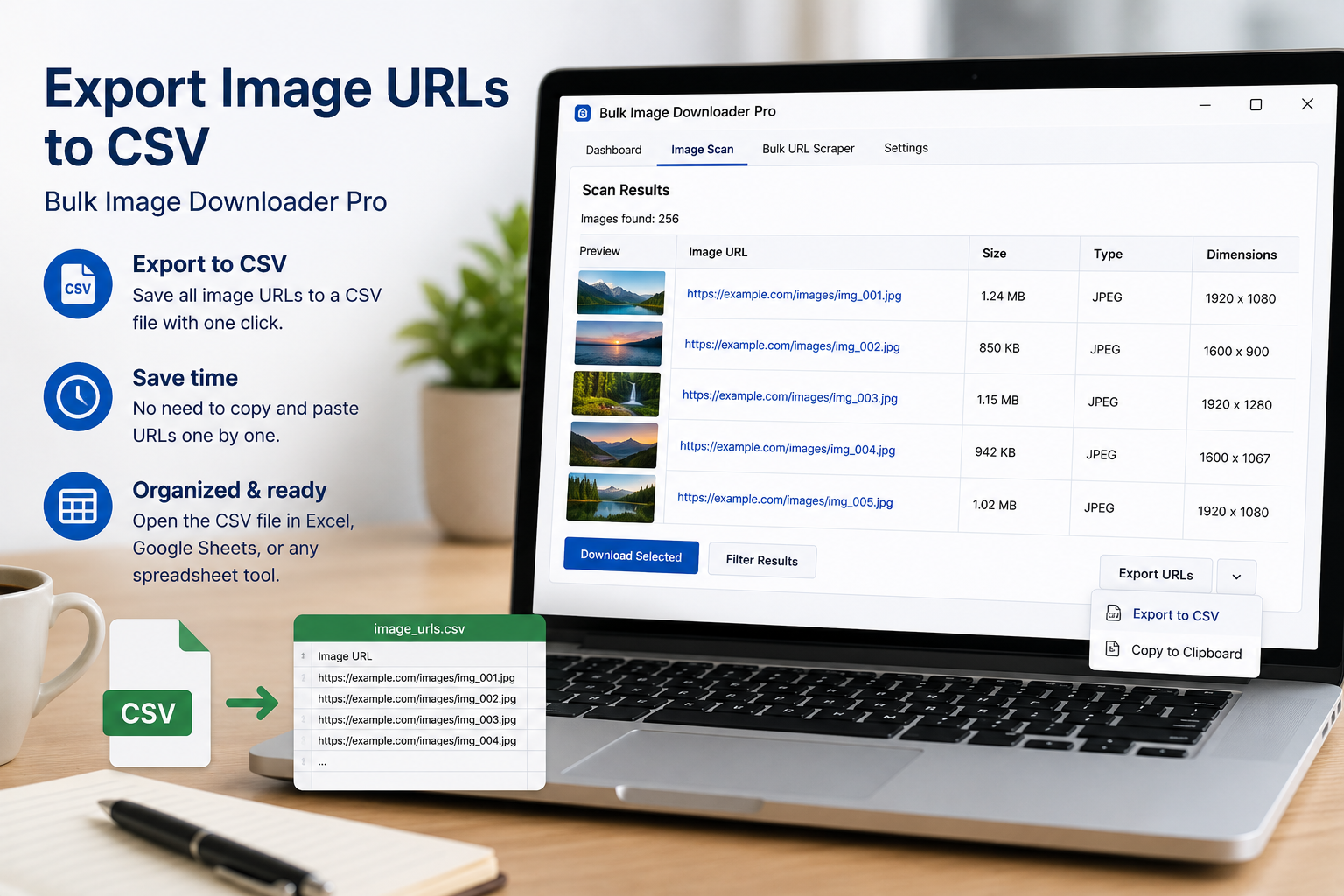
After a page scan or bulk scrape, you may not want to download the files immediately. Sometimes the useful output is the list itself: URLs, dimensions, formats, source details, or a spreadsheet you can review with someone else. Bulk Image Downloader From URL List lets you export image URLs to CSV from the side-panel results.
This is different from exporting downloader tasks on the options page. The side-panel CSV export is for scraper results: the images found during scanning, along with useful metadata.
What the CSV export includes
The scraper CSV includes the image URL plus metadata columns such as width, height, type, format, file size, aspect ratio, alt text, title, and caption when that information is available.
That makes the export useful for audits, research lists, image migration planning, ecommerce cleanup, content inventories, and sharing findings before anyone downloads a large batch.
Export selected images or the displayed list
Selection controls the scope. If you select images first, the CSV export uses the selected images. If nothing is selected, it exports the currently displayed results.
This is important after filtering. A filtered view can become the export set, while manual selection lets you export only the images you personally reviewed.
Use Copy URLs when you only need links
If you only need the raw image links, use Copy URLs instead. It copies selected URLs when images are selected, or the displayed image URLs when nothing is selected.
Use CSV when you need columns and context. Use Copy URLs when you just need a quick list to paste somewhere else.
Clean before exporting
A CSV full of icons, tracking pixels, repeated thumbnails, and wrong-domain images is not much help. Before exporting, sort the results, use Current domain only when appropriate, filter by dimensions or type, and remove duplicates.
The cleaner the result set, the more useful the spreadsheet becomes.
A practical CSV export workflow
- Scan a page, run Deep Scan, Area Scan, pagination, or Bulk URL Scraping.
- Review the results in grid or table view.
- Filter out clutter and duplicate URLs.
- Select a subset if you do not want the full displayed list.
- Click Export(CSV) to save the metadata file.
- Use Copy URLs instead when you only need plain links.
For collecting from multiple page URLs first, read scrape images from a URL list. For reviewing results before export, see review scraped image results.
Bulk Image Downloader From URL List is useful here because the hard part is rarely “save one file” — it is cleaning and repeating the job without rework.
When the list is ready, run it through Bulk Image Downloader From URL List Extension so naming rules, folders, and filters stay consistent across the batch.