
Queued Downloads for Large Batches
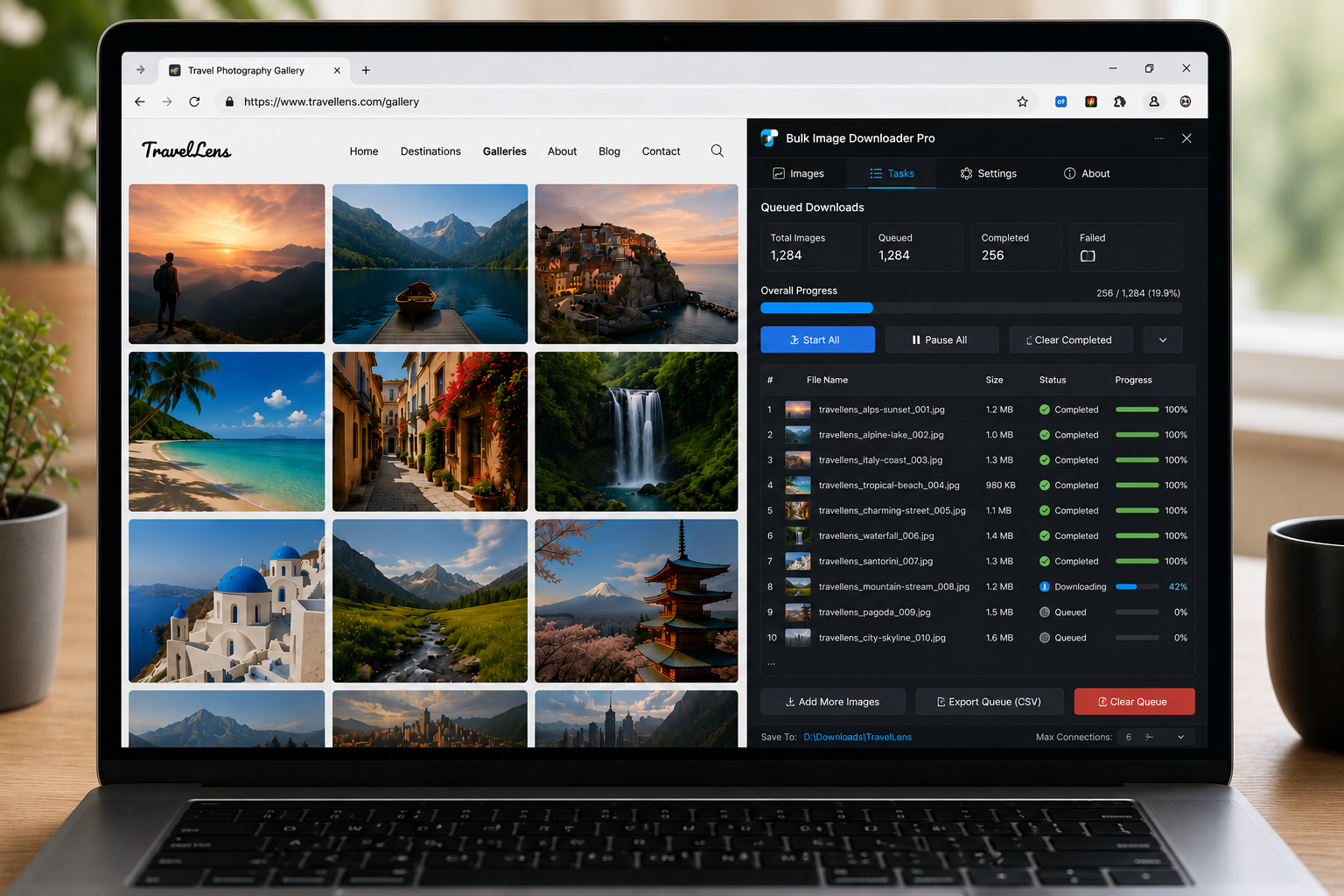
Running one task quickly is different from running ten tasks cleanly. If several image jobs all start together, they can compete for bandwidth, processing, ZIP creation, and browser attention. Queued downloads for large batches help by running tasks in order instead of letting everything fire at once.
Bulk Image Downloader From URL List provides Queued Download as a global option on the options page.
What queued mode does
Queued Download looks for pending tasks that are ready to run, then processes them one after another. A task starts, finishes, and saves its status before the next eligible task begins.
This is useful when you have several distinct jobs: different folders, different URL lists, different output settings, or several ZIP tasks that should not overlap.
Use queueing for control, not raw speed
Queueing is not the fastest way to finish every possible set of tasks. Its job is control. It reduces the chance that multiple heavy jobs will collide or make it harder to understand which task caused a problem.
For speed inside a single task, use the parallel download setting. For order across several tasks, use queued mode.
Know how scheduling fits in
Queued Download and scheduled task behavior are closely related. The queue runner works with pending tasks that are due, and the UI disables download-time inputs while queued mode is active so you do not accidentally mix workflows.
If your goal is a specific future time, use scheduling. If your goal is to run a group of prepared tasks one by one, use queued mode.
Stage tasks before you run them
Draft Save is helpful for large batches. Build the task list, check folders, file types, ZIP settings, processing options, and naming rules, then draft-save before starting the queue.
That gives you a chance to review the task board as a complete workflow instead of fixing settings after downloads have already started.
A practical queued-batch workflow
- Create or import the tasks.
- Check each task’s URL list, folder, file types, and ZIP or processing settings.
- Use Draft Save.
- Enable Queued Download.
- Start the run and let the eligible tasks process one after another.
- Review task reports or failed URL notes afterward.
For speed tuning inside each task, read parallel image downloads. For backing up task boards, see back up image download tasks to CSV.
For a repeatable setup, save the rules once in Bulk Image Downloader From URL List, then reuse them the next time you face a similar URL list.
Bulk Image Downloader From URL List keeps this workflow inside Chrome so you can filter, rename, and download from one place.