
Parallel Image Downloads
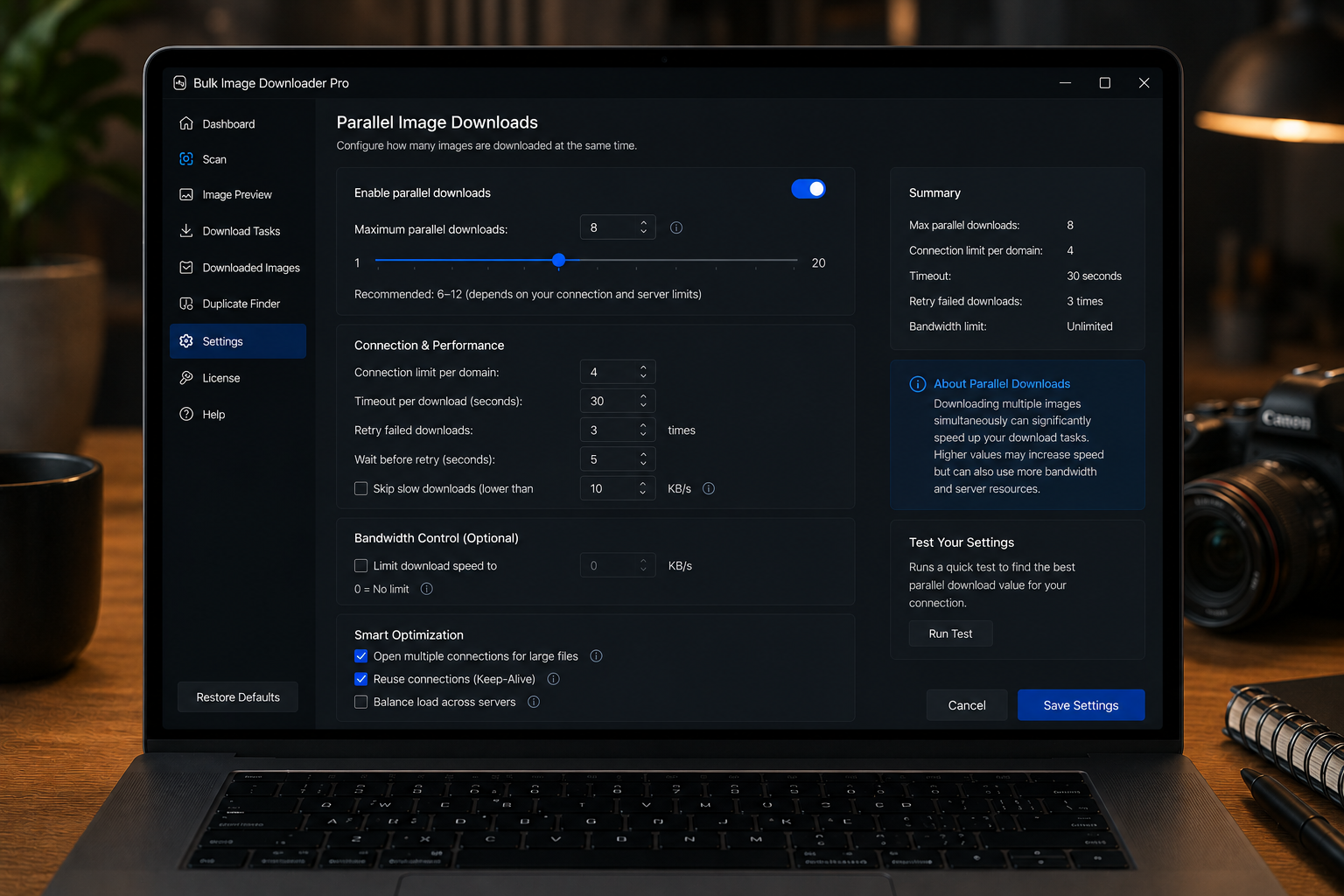
Large image lists feel slow when every file waits for the previous one. Parallel image downloads solve that by letting a task fetch several files at the same time. The right setting can make a batch finish much faster, but it also needs to respect your browser, connection, and the source website.
Bulk Image Downloader From URL List exposes this as the Parallel Downloads control on the options page.
What the parallel setting controls
The setting controls how many downloads the task can run at once. A higher number can move through a long URL list faster. A lower number is gentler when a source server is slow, rate-limited, or likely to reject too many simultaneous requests.
Licensed PRO can use the full range up to 100. Non-licensed modes are capped more tightly, so the visible value may be clamped based on the active tier.
Start moderate, then adjust
There is no universal best number. A stable CDN may handle higher concurrency well. A small website, slow host, or fragile connection may behave better with fewer simultaneous downloads.
A practical approach is to start with a moderate value, run a small batch, and watch for failed downloads, browser strain, or server errors before raising the count.
Use lower concurrency when accuracy matters more than speed
Lower parallel counts are useful for heavy processing, ZIP output, fragile sites, or tasks where you want fewer moving parts. They can also be a better choice when you are downloading from a site that should not be hit aggressively.
Speed is useful only if the result is clean.
Parallel downloads and queued downloads are different
Parallel downloads control what happens inside one task. Queued Download controls how multiple tasks take turns. You can think of parallel as the speed setting for a task, and queueing as the order setting for a group of tasks.
For one large URL list, parallel count matters most. For many separate jobs, queueing may matter more.
A practical tuning workflow
- Set up the task and save it as a draft.
- Choose a moderate parallel count.
- Run a small sample or a less risky task first.
- Increase the count if downloads are clean and the browser stays responsive.
- Lower it if failures rise, the site slows down, or processing becomes heavy.
For task order, read queued downloads for large batches. For task settings, see bulk download settings.
Repeat the work often? Bulk Image Downloader From URL List holds the URL list, filters, and settings in a single Chrome workflow.
Keeping the process in Chrome means filtering, renaming, and downloading happen in one place.
The count lives in Settings, not on the task
The value you are tuning is not on the download card. How many at once is in Settings, and it means how many pictures save at the same time inside a running download. The default is 5. A download does not carry its own copy of that number, so two tasks started under the same setting share the same ceiling.
That is why a change applies to whatever runs next rather than the task in front of you. Set it where you intend it, confirm the value, then start the batch. Expecting a per-task override that does not exist is a common reason a run feels like it ignored the setting.