
Download Images from Part of a Webpage — Bulk Image Downloader Pro
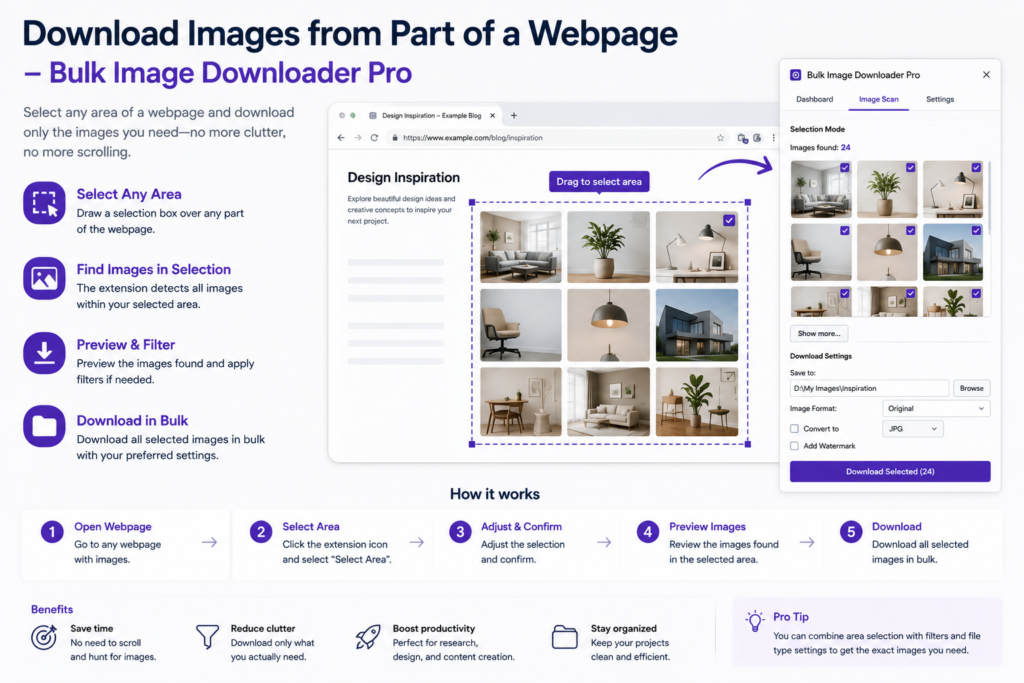
A full-page image scan is fast, but many layouts are noisy. Headers, nav icons, author avatars, ad creatives, related-post thumbnails, and tracking pixels all count as images. If you only need one gallery column or article block, collecting the entire document means extra cleanup.
To download images from part of a webpage, use Area Scan in the side panel of Bulk Image Downloader Pro. You draw a rectangle on the live page, and the extension collects image URLs inside that region while ignoring everything outside the box.
When a partial-page scan makes sense
- Long articles: in-text photos without the hero banner and footer badges
- Multi-gallery pages: one carousel when several sit on the same screen
- Product detail pages: main shots without the recommended-items strip
- Marketplace grids: one seller block on a busy results page
- Sidebars and ads: skip them by boxing only the content column
If the whole page is signal and little noise, Scan Current Page is still the quicker choice.
How Area Scan works
- Open the page and scroll to the section you need so it is rendered.
- Click Area Scan in the side panel.
- Draw a rectangle around the gallery, grid, or image block on the page.
- Review the returned URLs in grid or table view.
- Filter by size, format, domain, or URL text for any stragglers inside the box.
- Send the selection to a download task when you are satisfied.
By default, Area Scan replaces your current result list. Turn on Stack Mode first if you want to merge multiple regions into one collection.
Lazy-loaded content inside your box
Area Scan is a targeted one-shot extraction. It does not auto-scroll the page for you. If the region you box still has unloaded thumbnails, scroll or run Deep Scan on the full page first so lazy images can appear, then run Area Scan on the settled section. For scroll-heavy galleries, see download lazy-loaded images.
Starting Area Scan also turns Continuous Scanning off temporarily so automated rescans do not overwrite your region results. Re-enable the checkbox afterward if you still need to watch for newly loaded images.
Pair Area Scan with preview filters
Even a tight box can include UI chrome, tiny thumbnails, or duplicate URLs. After the scan:
- set minimum width and height to drop icons and spacers
- filter by file type if you only want photos
- use URL or domain filters on template assets that slipped inside the region
- deduplicate identical URLs before creating a task
Side-panel scraping is free on all tiers. Options-page download features depend on your license.
What Area Scan cannot do
Area Scan does not bypass logins, paywalls, or blocked media. It only reads what the browser can render inside the region you select. If the layout shifts after ads load, let the page settle before you draw the box. If you miss part of a gallery, scan another region with Stack Mode enabled or redraw after scrolling.
For a feature-focused walkthrough of the same tool, see Area Scan images from a selected region.
Install Bulk Image Downloader Pro and use Area Scan the next time only one section of a busy page holds the images you actually need.
Continue reading: Send Scraped Images to a Download Task.
Get Bulk Image Downloader Pro on the Chrome Web Store, watch the tutorial video, or visit our YouTube channel for more image scraping tips.