
Download Lazy-Loaded Images
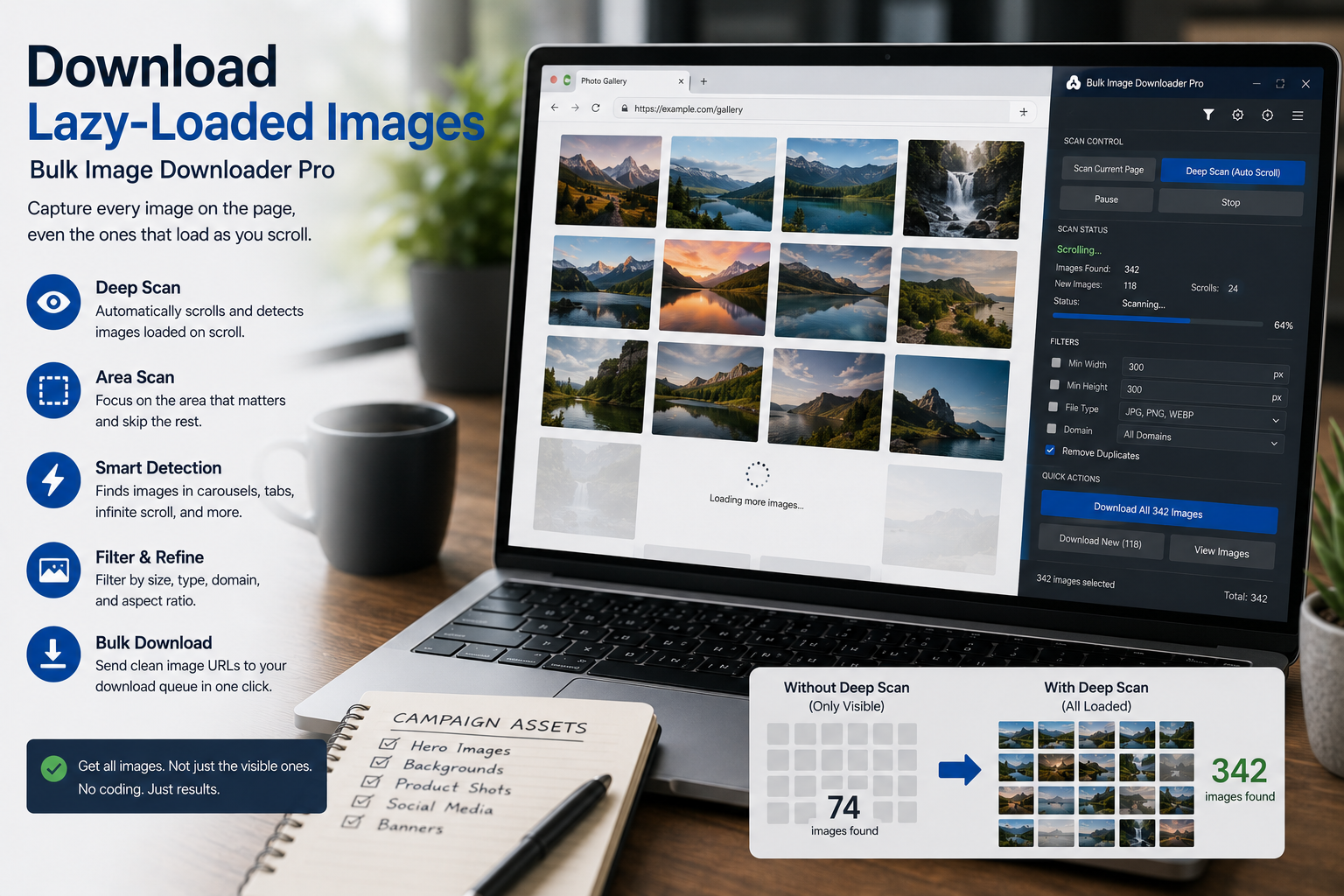
You open a gallery, run Scan Current Page, and get a dozen images when the page clearly holds dozens more. On modern sites, that gap is usually lazy loading: pictures are not fetched until you scroll near them, open a tab, or trigger JavaScript that injects more markup.
If your goal is to download lazy-loaded images, you need a scan that behaves like a patient visitor, not a single snapshot of what happened to be on screen when you clicked. That is what Deep Scan in this extension is for.
Why a normal scan misses lazy-loaded pictures
A basic page scan reads image URLs the browser can already see in the DOM. Lazy-loaded assets often sit behind placeholders, tiny preview shells, or empty data-src attributes until the page decides you are close enough to need the real file.
That is good for site speed, but it means an image downloader that only looks once will under-count on:
- photography portfolios and editorial galleries
- ecommerce grids that load more rows as you scroll
- infinite-scroll feeds and category pages
- AJAX listings that append new cards without a full reload
For a plain explanation of the technique sites use, see what lazy loading does to images.
How to download lazy-loaded images with Deep Scan
Deep Scan is the side-panel mode built for this problem. In the extension source it:
- runs an initial scan of the current page
- auto-scrolls down the page in stages so off-screen content can load
- rescans about every five seconds while the session is active
- keeps adding newly discovered URLs to your results list
You can stop the session manually when the count stops growing, or use a timed scan duration if you set one in the side panel. Long infinite-scroll pages take longer because the tool is waiting for the site to reveal more media, not guessing hidden server files.
A practical workflow
- Open the gallery or listing and sign in if the site requires it.
- Run Scan Current Page as a quick baseline.
- If the count is low, switch to Deep Scan and let it run until new images stop appearing.
- Filter out tiny placeholders with minimum width/height filters in the preview.
- Remove duplicate URLs in the side panel if the page re-served the same asset during scrolling.
- Send the cleaned selection to a download task on the options page.
If the page keeps adding images over time without you scrolling, that is a different problem. Use scan for newly loaded images with Continuous Scanning instead of, or after, Deep Scan.
Spot checks before you download
Lazy-loaded pages often mix real photos with icons, ads, and repeated thumbnails. After Deep Scan:
- sort or filter by dimensions to drop 1×1 tracking pixels and UI sprites
- filter by file type if you only want JPG or PNG
- use domain or URL filters on noisy templates
- turn on Stack Mode if you need to combine results from multiple scan passes
Side-panel scraping is available on all tiers. Advanced download-task controls on the options page depend on your license tier.
What this cannot fix
Deep Scan only collects images the browser can load for a normal logged-in visitor. It does not bypass paywalls, expired sessions, blocked hotlinking, DRM-style protection, or media that never reaches the page DOM. If Chrome shows a permission warning, fix site access first, then scan again.
For more detail on the Deep Scan behavior itself, read deep scan lazy loaded images. For very long feeds, also see infinite scroll image download.
Install the extension and run Deep Scan the next time a gallery looks incomplete after a quick scan.
Continue reading: Scan for Newly Loaded Images While a Page Keeps Updating.