
Avoid Browser Crash on Large Downloads
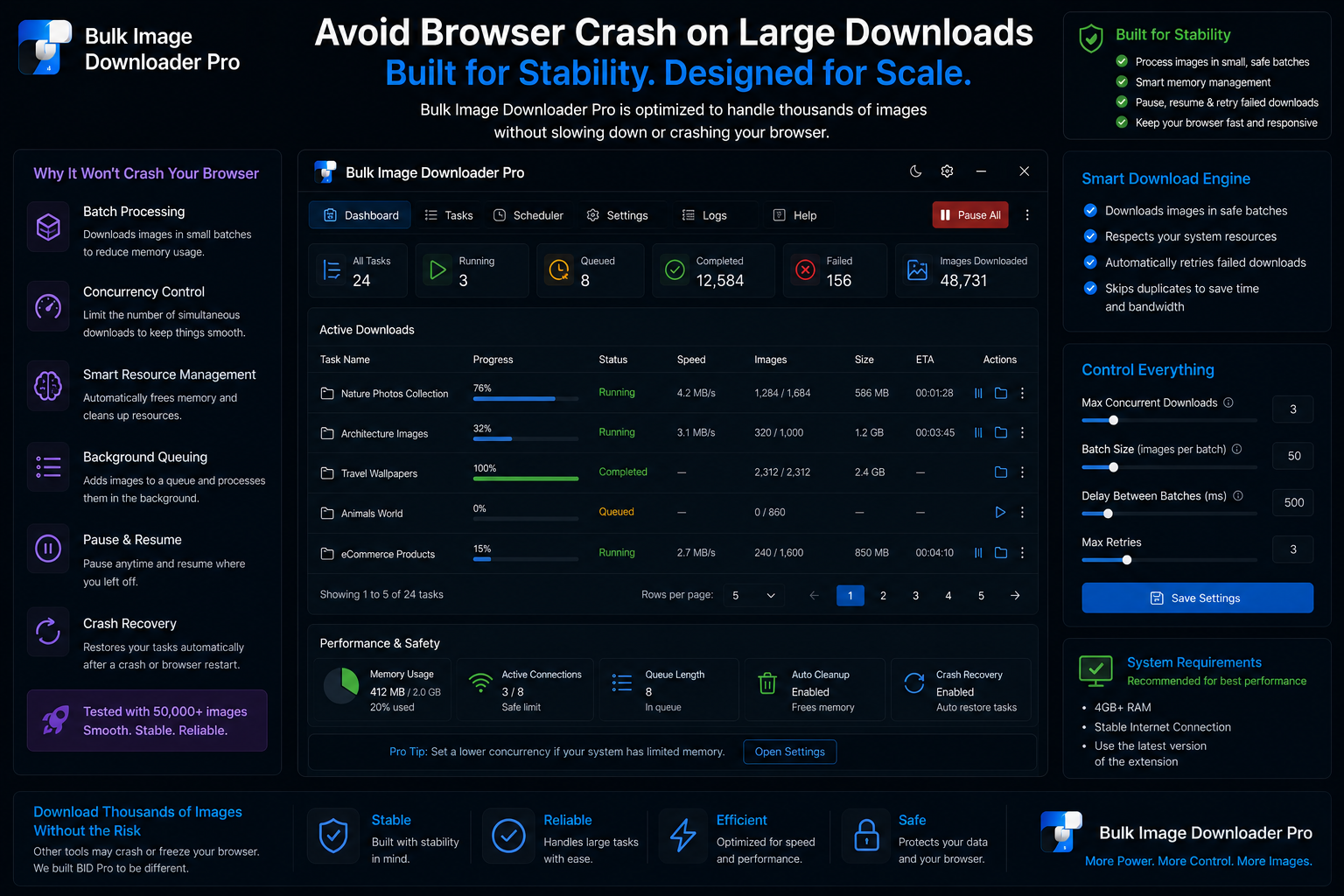
A tab that dies two-thirds through a five-thousand-image job costs more than the time you lost. You rebuild the list, guess what landed, and rerun. To avoid browser crash on large downloads, you need settings that match how Chrome actually handles hundreds of simultaneous saves and in-memory image work.
Bulk Image Downloader From URL List runs downloads client-side in the browser. That keeps data local, but it also means memory, disk I/O, and concurrent network requests are your limits. The extension gives you levers to stay inside them.
Enable ZIP mode for big batches
The highest-impact change for large jobs is the per-task ZIP checkbox. Instead of saving hundreds or thousands of loose files through separate download events, the extension can bundle output into one archive named after your folder.
The options-page guidance is explicit: pair higher parallel counts with ZIP mode to reduce browser strain. Loose files at high concurrency multiply overhead fast; one ZIP write is gentler on the tab.
ZIP has limits too. Very large collections (roughly over 2GB) can fail during archive creation. Split those into multiple tasks or batches instead of one monster job.
Keep parallel downloads realistic
Parallel Downloads speeds fetches, but more is not always better. Start around 5—10, raise gradually, and back off when you see stalls, HTTP blocks, or tab lag.
Licensed PRO allows up to 100 concurrent downloads; lower tiers cap the number. A stable moderate setting that finishes once beats a maxed slider that forces a restart.
Read best parallel download setting for tuning guidance.
Split work across queued tasks
One task with ten thousand URLs is harder on the browser than ten tasks with one thousand each. Use Queued Download so tasks run sequentially when you want an orderly pipeline with natural checkpoints.
Each task also has its own download button, so if one chunk fails you can rerun that task without rebuilding the entire list. Export tasks to CSV first so a crash becomes a setback, not a full rebuild.
Reduce unnecessary processing load
Resize, convert, watermark, and optional EXIF stripping run in Web Workers, which helps keep the UI responsive. Still, only enable transforms you actually need on large batches. Extra Canvas work per file adds CPU and memory pressure.
Run the 404 checker before download so dead URLs are not wasting slots in the queue. Cleaner input lists mean fewer error retries and less wasted work.
What the extension cannot guarantee
- it cannot override Chrome or OS memory limits on your machine
- it cannot prevent every host from rate-limiting aggressive concurrency
- a hard tab crash may still require reopening the extension and rerunning unfinished tasks
These habits lower risk dramatically; they do not make infinite-scale downloads bulletproof.
Recovery mindset
If a batch does choke, treat it as a tuning signal: lower parallel count, turn ZIP on, split the URL list, drop optional processing, and rerun the affected task only. Saved drafts and CSV exports make that recovery practical.
Install the extension and configure large jobs for stability first, raw speed second.
Continue reading: Back Up Image Download Tasks.