
Continuous Image Scanning
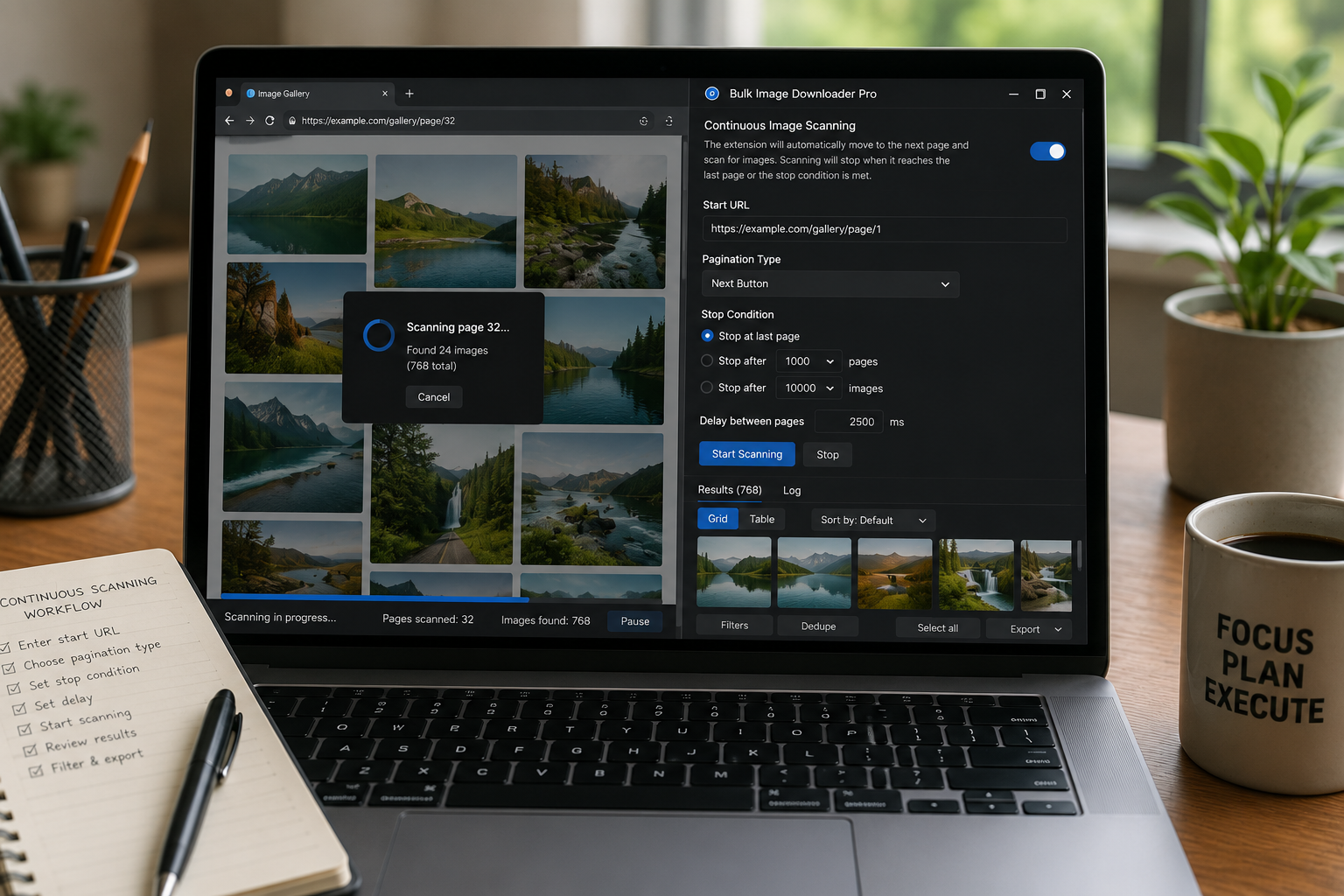
Some webpages keep changing after the first scan. More images appear as you scroll, open sections, switch filters, or wait for scripts to finish. Continuous image scanning helps catch those changes without forcing you to press Scan Current Page after every small update.
In Bulk Image Downloader From URL List, Continuous Scanning works from the side panel alongside Stack Mode and scan duration controls. Together, these settings decide whether the page keeps being watched, whether new scans merge with existing results, and when a scan should stop.
What continuous scanning is for
Use it on pages where images arrive gradually: product grids that update after filters, pages with lazy content, galleries that inject new items, or feeds that add images as you interact.
It is not needed for simple static pages. If all images are already available, Scan Current Page is cleaner and faster.
How it behaves
Continuous Scanning watches for page changes and can trigger another collection pass when new content appears. This helps newly loaded image candidates land in the same result set instead of requiring constant manual rescans.
Because it depends on browser-visible page changes, it is still best-effort. It cannot collect private, blocked, expired, or never-loaded images.
Use Stack Mode deliberately
Stack Mode controls whether scan results accumulate or reset. Turn it on when you want images from multiple changes, sections, or pages to build into one combined list. Leave it off when each scan should start clean.
For continuous scanning, Stack Mode is usually helpful because the point is to gather images over time. But for testing a page or comparing sections, a fresh result set may be easier to review.
Control duration and stop when the set is enough
Use scan duration presets for pages that need time to load. A short run is fine for small galleries. Longer runs can help when images appear slowly. The Stop Scan button is there for pages that keep changing or begin adding unrelated results.
Do not let a noisy page run forever just because more images appear. Stop when the useful part of the job is captured.
Review before download
Continuous scanning can collect useful late-loading images, but it can also collect repeated thumbnails, UI graphics, ads, icons, or images from unrelated sections. Always review the results before creating a task.
Use filters, current-domain cleanup, selection, sorting, and deduplication to turn the growing result set into something worth downloading.
A practical continuous-scanning workflow
- Open the page and decide whether images are likely to load over time.
- Enable Continuous Scanning in the side panel.
- Turn on Stack Mode if results should accumulate.
- Choose a scan duration or run until stopped.
- Scroll or interact with the page as needed.
- Stop the scan, then filter and dedupe before downloading.
For lazy-loaded pages, read deep scan lazy loaded images. For paginated galleries, see multi page image scraping.
What makes this hard is not the single save, but cleaning and repeating the job without rework.
The extension keeps filtering and renaming beside the download, so nothing is handed to a separate desktop program.