
Chrome Extension vs Desktop Image Downloader — Which Workflow Fits?
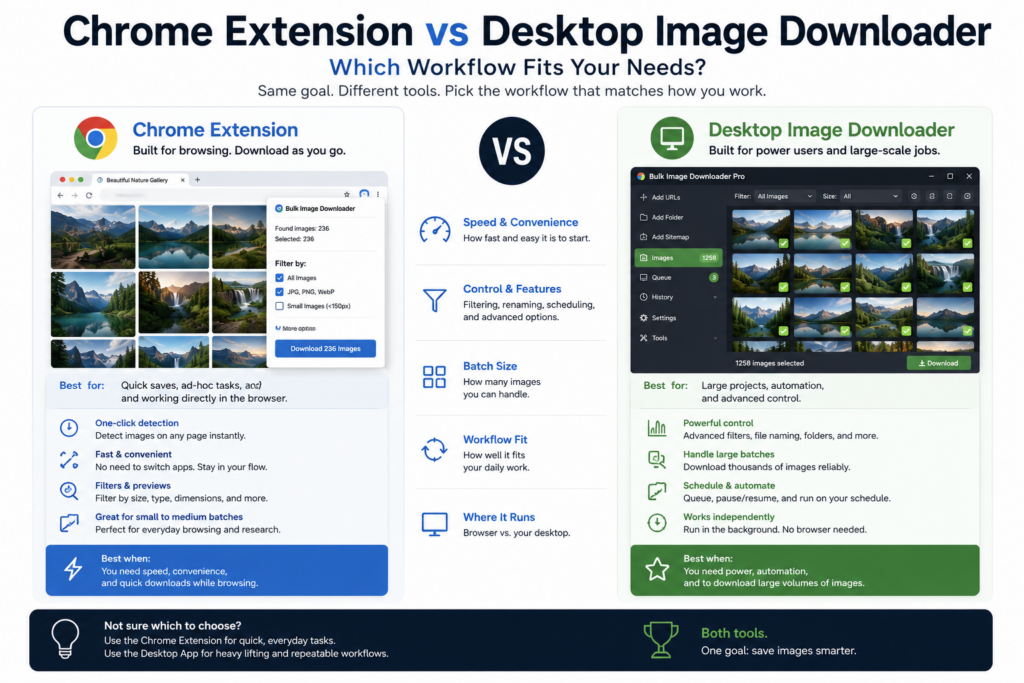
Choosing between a Chrome extension and a desktop image downloader is really a workflow decision. Both can be useful. A desktop app may be better for very large offline jobs or workflows that live outside the browser. A Chrome extension is often better when the images are on pages you are already browsing.
Bulk Image Downloader From URL List is built around the browser-first side of that trade-off. It scans pages in Chrome, sends clean URL lists into download tasks, and handles naming, folders, ZIP output, and optional processing from the options page.
Setup and access
A Chrome extension installs through the Chrome Web Store and runs where the source pages already live. That matters on work machines where installing desktop software is restricted, and it matters when the source site depends on your browser session. A desktop downloader is a separate application. That can be powerful, but it may need its own setup, permissions, updates, and sometimes extra work to access logged-in or session-based pages. If the images are visible in your Chrome tab, an extension has a natural advantage because it starts from the same browser context.Browser-visible pages vs external jobs
Chrome extensions are strongest when the source is a normal browser page: ecommerce pages, galleries, dashboards, internal sites, content archives, or pages with lazy-loaded images. Bulk Image Downloader From URL List uses side panel scanning modes such as Scan Current Page, Deep Scan, Area Scan, and Bulk URL Scraping to collect images from browser-accessible pages. Desktop apps may be a better fit when the workflow is not browser-centered: local folders, direct server downloads, command-line automation, or very large unattended jobs. The right choice depends on where your source images live and how much control the workflow needs outside the browser.Processing and organization
A lightweight extension may only collect images. Bulk Image Downloader From URL List goes further by separating discovery from task processing. The side panel finds and filters images; the options page manages download tasks, filename construction, folder names, ZIP output, parallel or queued execution, CSV task import/export, resize, convert, EXIF stripping, watermarking, URL checks, preview filtering, and duplicate review. That makes it closer to a browser-based workflow tool than a simple current-page grabber. Still, it remains subject to browser limits. It is not meant to replace every desktop downloader for every scale of job.Privacy and local control
For many teams, local control matters. Bulk Image Downloader From URL List runs scanning and task processing in Chrome rather than asking users to upload image lists to a remote web service. Desktop tools can also be local, so this is not an argument against desktop software. It is a reminder to check how any downloader handles URLs, files, credentials, and processing. For sensitive internal pages, the safest workflow is usually the one that keeps collection inside your normal browser and avoids unnecessary third-party handoffs.When to choose the extension
Choose a Chrome extension when the source pages are in Chrome, the images depend on logged-in access or lazy loading, and you want to review, filter, and create tasks without leaving the browser. It is also a good fit when you repeat the same website workflow and want saved sessions, saved scraping rules, task export, and consistent output folders.When a desktop app may still win
Choose a desktop app when the source is outside the browser, when you need OS-level integrations, when you are processing local folders, or when the job is too large or too automated for a browser extension to be the right environment. The practical answer is not that one category is always better. If your images start on web pages you can see in Chrome, try the extension workflow first. If the work outgrows the browser, a desktop downloader may be the better tool for that specific job.Widening the search?Widening the search? best bulk image downloader extensions lists other tools worth testing.
Continue reading: Bulk Image Downloader vs Imageye.