
Download Gallery Images in Bulk Without Saving the Clutter
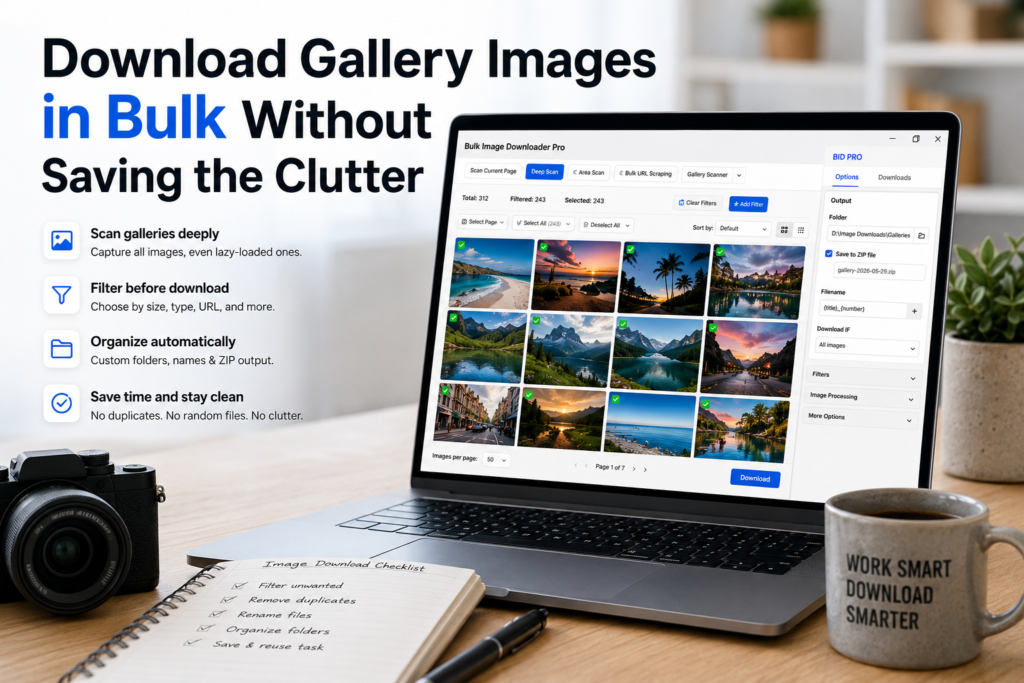
Galleries look simple until you try to save them properly. The page may show thumbnails first, load full-size images only after scrolling, split the gallery across several pages, or repeat the same image through different URLs.
To download gallery images in bulk, you need more than a one-click grab. You need to load the gallery, review what was found, remove the clutter, and save the final set in a useful order.
Use the right scan for the gallery
For a normal page, start with Scan Current Page. If the gallery lazy-loads, use Deep Scan so the extension scrolls and gives browser-visible images time to appear. If the gallery is split across pages, use pagination scanning where the page structure supports it.
The key is to collect before downloading. A quick scan that only sees the first viewport usually misses the images people actually want.
Separate thumbnails from real gallery images
Most galleries contain both preview images and larger files. Use minimum width and height filters to remove small thumbnails, then review the grid to confirm the remaining images are the actual gallery assets.
File type, aspect ratio, domain, and text filters can also help. For example, thumbnails often include predictable URL fragments such as thumb, small, or size numbers.
Review duplicates before saving
Galleries often repeat images in carousels, related blocks, mobile variants, or CDN URLs. Exact URL deduplication removes repeated links. For near-duplicates, the Perceptual Duplicate Finder can help group visually similar images so you can decide which copy to keep.
Do not blindly delete near-duplicates in a photo gallery, though. A similar shot may still be a different image. Review before removing.
Save the gallery in a useful structure
After the set is clean, send the images to a download task. Use sequence numbers in the filename pattern if order matters. Use a named folder or ZIP output when you want the gallery to land as one organized archive.
If you download galleries from the same site repeatedly, saved rules and sessions can reduce repeated setup. They help you keep the same filters and review pattern instead of rebuilding the workflow every time.
A practical gallery workflow
Run Deep Scan, filter by size, review the grid, remove obvious repeats, apply a filename pattern with sequence numbers, and save into a folder or ZIP. That gives you the gallery images you wanted without dragging along icons, thumbnails, and duplicates.
Turning the continuation toggles off between passes
Gallery scans have two toggles that keep working until you stop them: Keep scanning and Add to previous scan. Leave either on and a later visit can extend an earlier scan rather than starting fresh, which is how thumbnails from a previous pass reappear in a set you already cleaned.
They are not faults; they just persist. Before a filtering pass you intend to trust, turn both off so the scan reflects the gallery you are looking at now. Re-enable them when the goal is deliberately cumulative, such as paging through a gallery you expect to grow.
Continue reading: batch resize images in browser.
Saving a single file is not the challenge; cleaning and repeating the job without rework is.
The extension keeps filtering and renaming beside the download, so nothing is handed to a separate desktop program.