
Download High Resolution Images Without Saving the Clutter
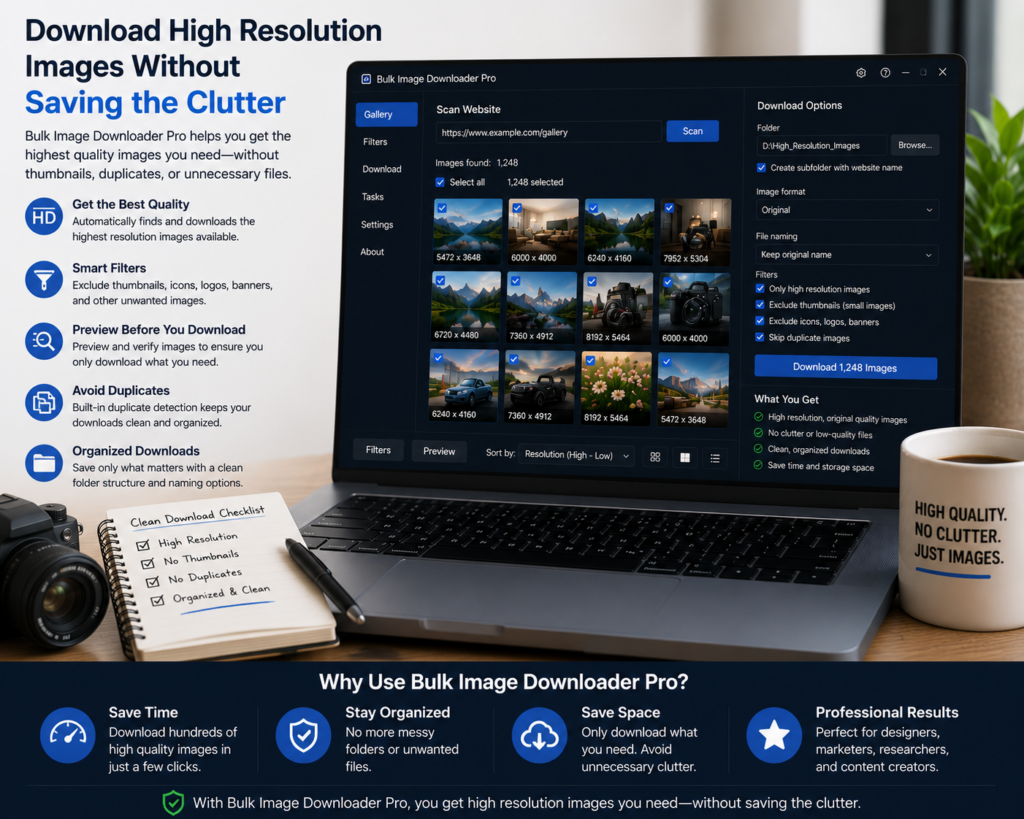
Most web pages contain far more small assets than useful large images. Logos, icons, thumbnails, avatars, tracking pixels, and sprites can flood the result list before you ever find the full-size photos.
To download high resolution images, start by collecting the page properly, then use size and shape filters before creating the download task.
Scan the page before filtering
Filters only work on images the extension has found. For a simple page, Scan Current Page may be enough. For lazy-loaded galleries, product pages, or infinite-scroll layouts, run Deep Scan so images that appear later have a better chance to enter the result list.
If the high-resolution version only appears after opening a gallery item or switching a page view, load that view first. The scan cannot collect a source the browser never sees.
Use dimensions as the first quality filter
Pixel dimensions are the clearest signal. Set minimum width and height values that match the job. For example, a moodboard may only need medium-size references, while product or design work may require much larger images.
This catches cases where the filename is misleading. A URL can say large while pointing to a small preview, or a plain hash can hide a 2400-pixel original.
Add aspect ratio when shape matters
High resolution does not always mean useful. A very wide banner, tall sprite, or long stitched image may pass a size filter while being wrong for the project.
Use aspect ratio filtering when you need landscape photos, square product shots, portrait images, or a consistent gallery shape. It keeps the result list closer to the files you actually intend to use.
Preview before downloading
Large images can still be the wrong images. Review the remaining candidates in the grid or table view before sending them to a task. Look for duplicates, banners, unrelated backgrounds, and large decorative assets.
Once the set is clean, download the originals if quality matters. Use Resize or Convert only when the final output needs a different size or format.
A high-resolution download workflow
Run the right scan, set minimum dimensions, add aspect ratio filters if needed, review the grid, remove obvious clutter, then download into a named folder or ZIP. That gives you a folder of high-resolution images instead of a mixed dump of every asset the page used.
Classic hides these settings until you reveal them
In Classic, the optional controls — file types, names, size, folders, ZIP, watermark, and a set time — sit under Reveal optional on the download. They are not in your way until you ask for them. That open or closed choice is remembered after you refresh, so once you reveal the size controls for a high-resolution job they stay visible for the next one.
Browser and Pipeline take the other approach: the same settings are laid out as tabs or steps rather than folded away. If you filter by resolution often, a layout that keeps the size step in view costs fewer clicks than revealing it each session.
Continue reading: skip thumbnails when downloading images.
Inside this extension, preview, filter, and export stay together — no jumping between tabs and desktop tools.
Because the whole task lives in Chrome, you review and rename files without leaving the tab.