
Organize Downloaded Images Into Folders Automatically
Bulk downloads become painful when every file lands in one flat folder. You may get the images you wanted, but now you have to sort them by source, category, date, product, or project before the folder is useful.
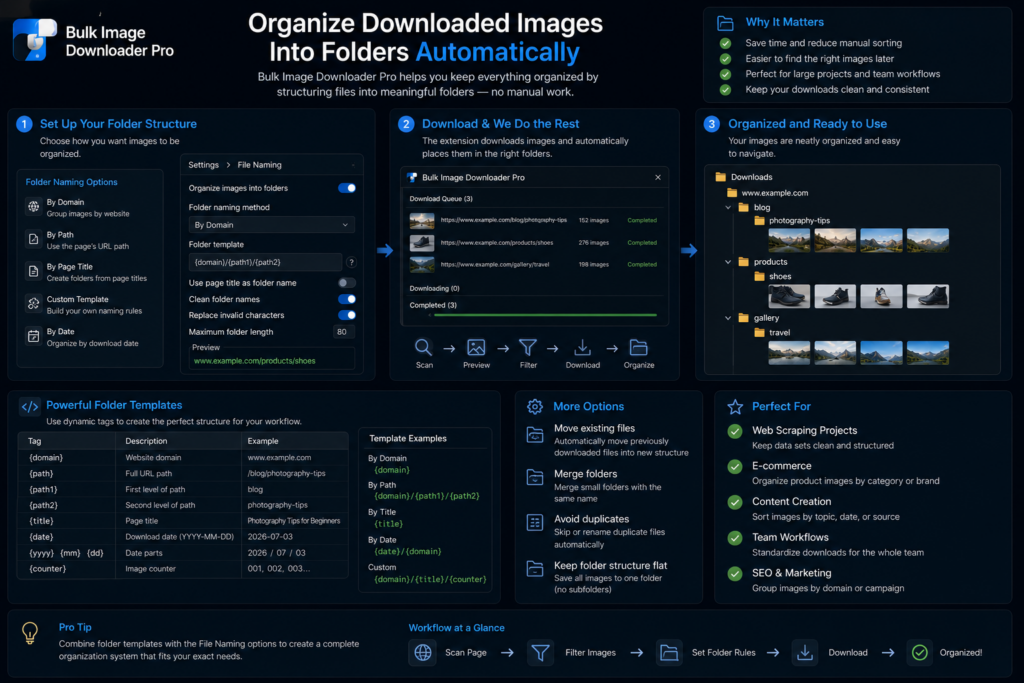
It is better to organize downloaded images into folders as part of the task setup, before the files save.
Start with a clear task folder
Bulk Image Downloader From URL List lets each task use a folder name. Use that field intentionally: a product category, site name, client name, date, campaign, or project label is usually better than a generic folder.
Keep folder names simple and avoid OS-reserved characters. The cleaner the folder name, the easier it is to reuse the structure later.
Use auto-folders for source-based sorting
Auto-folders can build subfolders from the URL domain or URL path fragments. That helps when a task pulls images from multiple sources or when the URL path already carries useful structure, such as year, category, product, or gallery.
Both ZIP and direct-file downloads follow the same path logic, so the folder structure can be preserved whether you save loose files or package the batch.
Pair folders with predictable filenames
Folders answer where the files go. Filenames answer what they are. Use the Filename Constructor when the files need sequence numbers, timestamps, URL fragments, website names, or custom names from CSV/TXT.
If order matters, enable Respect Order so sequence-based names follow the URL list order rather than completion order.
Use ZIP when the batch needs to travel
ZIP output is useful when the final result needs to be shared, archived, or moved as one package. It keeps the batch together and avoids dragging hundreds of loose files between folders or messages.
For very large collections, test your workflow first. Huge ZIP files can be awkward to open, move, or share depending on the system.
A folder-first workflow
Decide the folder structure before downloading, set the task folder, enable domain or URL-fragment auto-folders when they help, build the filename pattern, choose ZIP or loose files, then run the task. Save or export the task setup when the same structure will be used again.
The result is a download folder that already matches the way you work.
Continue reading: remove duplicate image downloads.
Get Bulk Image Downloader From URL List on the Chrome Web Store, watch the tutorial video, or visit our YouTube channel for more image download workflows.
You can apply the same approach in Bulk Image Downloader From URL List: collect the URLs, filter what you do not need, then download only the useful files.