
Skip Thumbnails When Downloading Images in Bulk
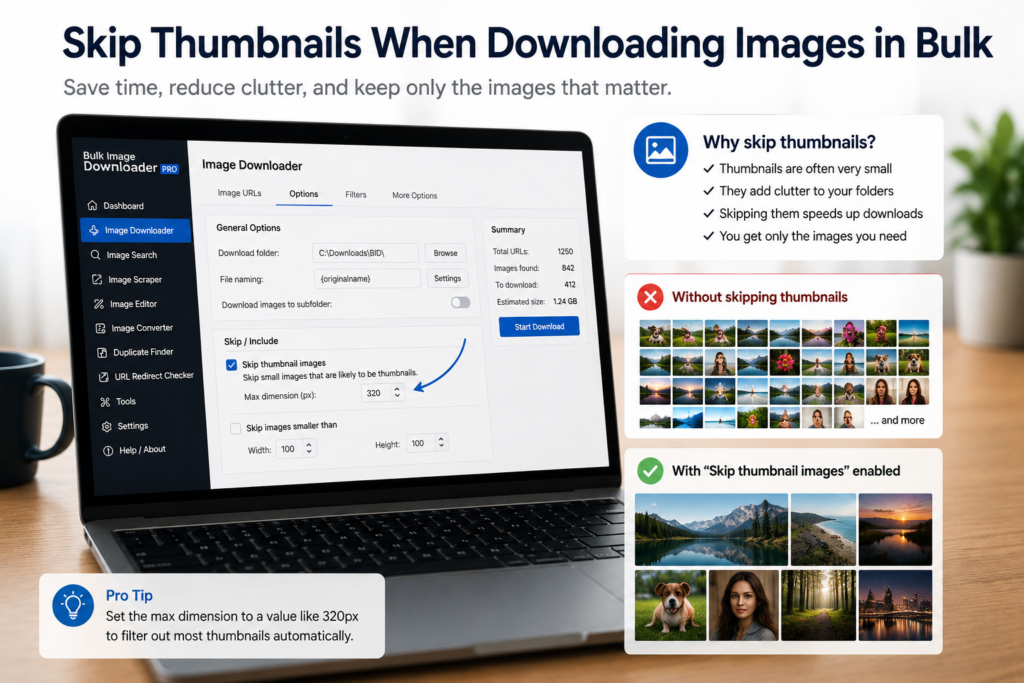
A messy image download usually has one cause: the task saved every asset it could find. That means real photos mixed with thumbnails, icons, favicons, logos, sprites, placeholders, and tracking pixels.
The way to skip thumbnails when downloading images is to remove the predictable junk before the download starts.
Start with minimum dimensions
Thumbnails and icons are usually small. Set a minimum width and height so tiny assets disappear from the result list. This is the fastest first pass because it does not depend on filenames or URL patterns.
Choose the threshold based on the page. A product gallery might need a lower minimum than a hero-image archive, but either way the goal is to remove obvious small assets early.
Use URL text to catch thumbnail patterns
Many sites label thumbnails in the URL. Look for terms such as thumb, thumbnail, small, icon, sprite, or size patterns such as 150x150.
Use text search and Download IF rules to exclude known junk patterns or include only the folders where full images live. This is especially helpful on sites that serve both a preview and a full-size version of the same image.
Filter by file type and domain
File type filters can remove formats you do not want. Domain filters help when the page pulls UI assets from several third-party services but the real content images come from one main host or CDN.
These filters are not perfect alone. They work best layered with dimension filters and a quick preview pass.
Preview the survivors
Before downloading, review the filtered list. A large logo may pass a size filter. A useful image may have a strange filename. The preview step is where you catch those exceptions before they land in your folder.
For repeat sites, save the filtering pattern as a rule once it works well. That turns thumbnail cleanup from a manual chore into part of the normal workflow.
A clean download workflow
Scan or Deep Scan the page, set a size floor, exclude thumbnail words in URLs, limit domains or file types where useful, preview the result, then download. The final folder should contain the images you came for, not every tiny asset the page happened to load.
When a scan continuation pulls thumbnails back in
Thumbnails often return through the same door you used to get more pictures. Also scan next pages continues through later pages of a gallery, and Keep scanning and Add to previous scan stay on until you turn them off. Leave either running and a later pass can extend an earlier scan, which is how low-resolution list images re-enter a set you had already trimmed.
That does not make the options unsafe; it makes them worth switching off before a filtering pass you intend to trust. Turn them off, take a clean scan, apply your minimum dimensions and URL-text rules, then re-enable them when you deliberately want the scan to continue.
Continue reading: organize downloaded images into folders.
Regular use is where Bulk Image Downloader From URL List pays off: it puts the URL list, filters, and settings in one Chrome workflow.
Renaming and filtering stay next to the download, which keeps the work in a single Chrome window.