
Download Product Images for Dropshipping
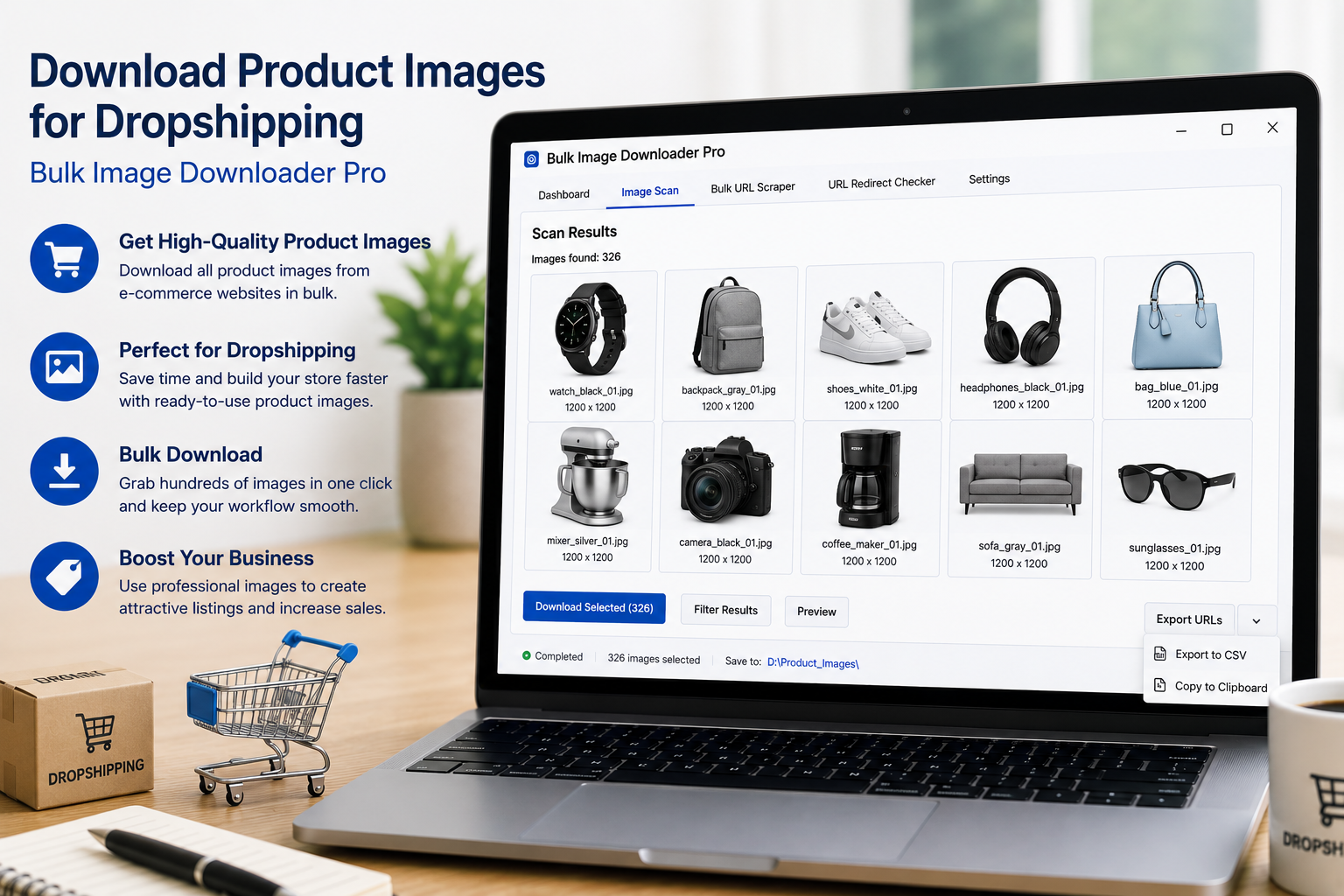
Product image prep can slow down a dropshipping workflow more than the product listing itself. A supplier page may have several gallery images, thumbnails, variant photos, badges, and banners. Saving each useful photo by hand, then renaming it for a catalog import, is repetitive work that does not scale.
Bulk Image Downloader From URL List helps turn that job into a repeatable browser workflow. Use it where you have permission to download and use the supplier images, then scan, filter, name, and organize the files before importing them into your store.
Start with the product pages
For one product, open the supplier page and run Deep Scan from the side panel. This is useful on pages where the gallery loads as you scroll or where carousel images are not all present in the first page snapshot.
For a batch of products, collect the product page URLs first. Paste them into Bulk URL Scraping or load a file, then set a sensible delay between page loads. The side panel gathers the images into a reviewable result grid instead of forcing you to save each product photo one by one.
Filter out page clutter
Dropshipping supplier pages often include more than product photos. Use filters before creating the download task:
- Minimum dimensions to remove payment icons, badges, and tiny thumbnails.
- File type filters to keep the formats your store accepts.
- Aspect ratio filters when your storefront needs square or consistent product shots.
- Source domain filters when you only want files from the supplier’s image host.
Turn thumbnails on while reviewing. It is easier to spot a size chart, logo, or unrelated banner visually than by reading a URL.
Name files for catalog import
Once the image list is clean, send it to the options page with Download Images Here or Download Selected. The filename constructor is where dropshipping workflows save time. You can build names from a sequence number, timestamp, URL fragments, website, custom text, or uploaded custom filenames.
If you already have SKUs in a spreadsheet, use a CSV or TXT custom filename file with one filename per URL. Keep filenames in the same order as the URL list, do not include file extensions in the custom filename file, and avoid invalid filename characters. This makes the downloaded files easier to match to product imports later.
Standardize images before upload
Storefronts often work better with predictable image formats and sizes. On the options page, you can resize images to a maximum width and height, convert supported images to JPEG, WebP, or PNG, and set quality where the selected operation supports it. Resize and Convert are separate processing modes, so choose the one that fits the job instead of enabling both.
You can also strip EXIF metadata by re-encoding supported images, and apply a PNG watermark if your workflow requires one. Use watermarking carefully; it should match your store policy and supplier rights.
Organize by product or supplier
Use folder names or ZIP output to keep batches separated. A simple pattern is one task per product, collection, or supplier batch. That makes it easier to check what was downloaded and avoids mixing images from unrelated products in the same folder.
For repeat work, save the task setup or export tasks to CSV. Exporting preserves the task configuration for later reuse, which is helpful if you use the same naming and output rules every time you onboard a supplier.
Respect image rights
A downloader does not grant product image rights. Before using supplier photos in a store, confirm that your supplier, marketplace, or license allows it. The extension can make the mechanical work faster, but permission and compliance are still part of the dropshipping process.
Continue reading: collect real estate listing photos in bulk.
Keep the setup repeatable: save rules once, reuse them on the next similar URL list.