
Queued vs Scheduled Image Downloads
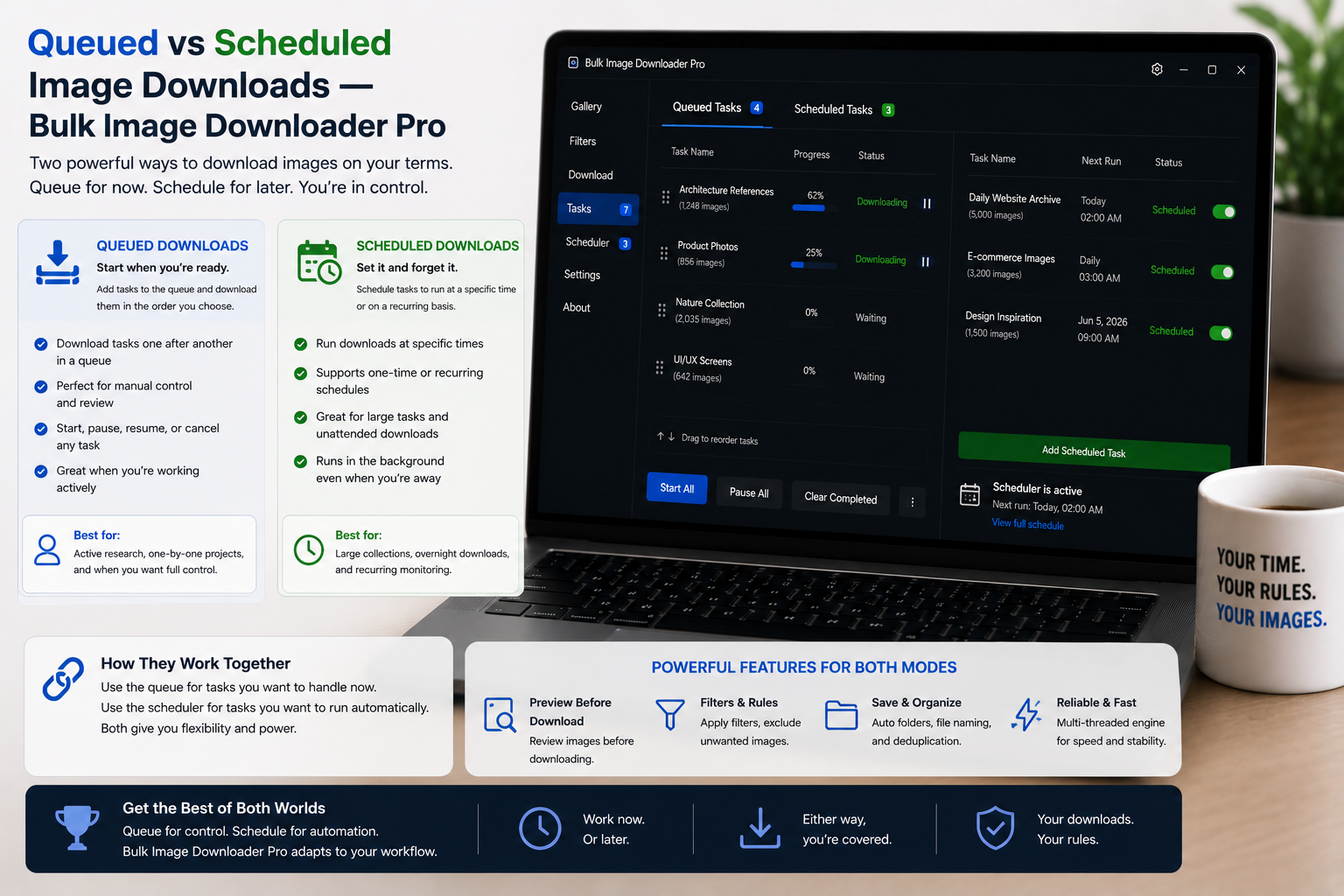
People often treat queuing and scheduling as the same feature. In Bulk Image Downloader From URL List they answer different questions. Queued downloads control order: run these ready tasks one after another, starting when you ask. Scheduled downloads control timing: run this task at a saved date and time.
Understanding queued vs scheduled image downloads keeps you from waiting on jobs that were never set to start, or from launching every task at once when you wanted a calm sequence.
What Queued Download does
The global Queued Download toggle on the options page puts tasks into sequential mode. When it is ON:- tasks run one at a time instead of all starting together
- you can start the sequence with Save & Download without setting a per-task schedule
- per-task Download time fields are disabled because timing is handled by the queue
- the status strip shows whether queued mode is ON or OFF
What scheduling does
When Queued Download is OFF, each task can carry its own Download time using your local timezone. The extension checks about every 30 seconds for tasks whose time has arrived, then runs them. Scheduling fits jobs you want later without babysitting the tab:- overnight or early-morning batches
- recurring catalog refreshes at a fixed clock time
- staggering heavy jobs away from peak hours
Queued vs scheduled at a glance
- Trigger: queued starts on demand when you download; scheduled starts when the saved time arrives
- Controls: queued uses one global toggle; scheduling uses per-task datetime fields
- Parallelism: with queued OFF, multiple due tasks may start together subject to your max parallel setting; with queued ON, tasks wait their turn
- Overlap: if queued mode is ON, scheduled tasks defer to the queue runner rather than racing past it
Choosing for real workflows
Use queued downloads when:- you have several draft or ready tasks and want them to finish in sequence today
- you prefer clicking Save & Download once and letting the extension walk the list
- the job should wait until a specific clock time
- you repeat the same task setup on a timetable and Chrome will be open at run time
Related controls
Queued and scheduled runs still respect per-task settings such as folders, filename rules, resize, convert, and ZIP packaging. For more on timed jobs, read schedule bulk image downloads. To run only one task from a long list, see download one image task at a time. Install the extension and match the mode to the question: order now, or time later.More alternatives are covered in best bulk image downloader extensions.
Continue reading: Auto Folders for Download Organization.For repeated runs, Bulk Image Downloader From URL List keeps your URL list, filters, and download settings together in Chrome.