
Resume Interrupted Image Downloads
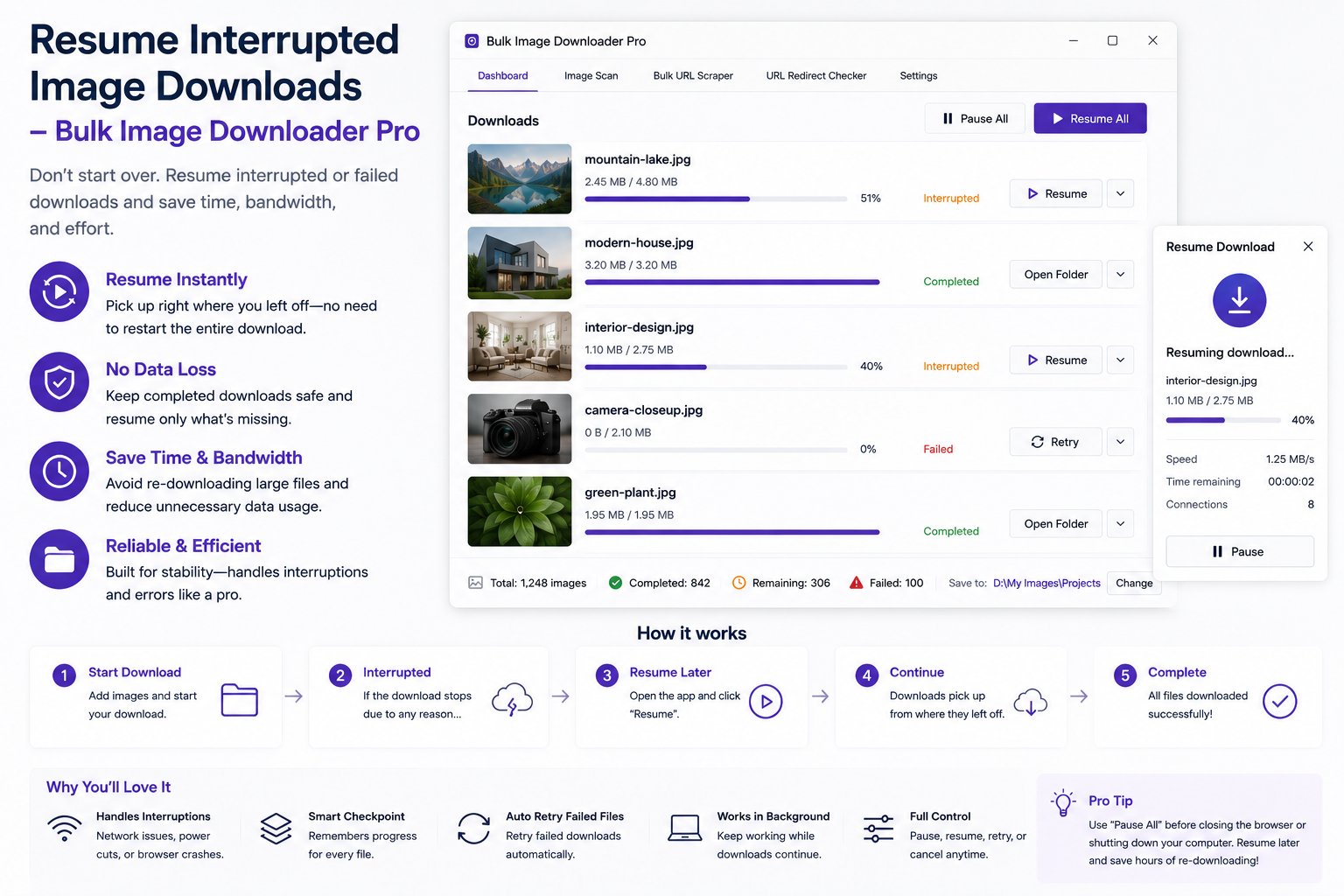
A closed laptop or dropped Wi-Fi mid-batch is frustrating. It does not have to mean rebuilding the entire job from scratch. To resume interrupted image downloads in the tool, you work from what persisted: your saved task list, your folder on disk, and the URLs that still need fetching.
What resume does and does not mean
Chrome downloads do not pause halfway through a file and continue later from the same byte offset. There is no magic resume button that knows exactly which files landed before the tab died.
What you do have is practical recovery:
- tasks and settings stored in browser storage
- a per-task download icon that runs only that task
- tools to trim URLs you already finished
- error reports listing failed URLs from the last run
The goal is finishing what is left, not rewinding a half-written file.
Start from the saved task
If you used Draft Save or finished editing before download, the task still holds your URL list and options. Reopen the options page and find the interrupted task in your list.
Check the essential info bar for queued mode and parallel count before you rerun, especially if the first attempt struggled under load.
Figure out what still needs downloading
- look at the folder on disk and note which filenames already exist
- open Advanced Image Filter, enable preview, and remove URLs you know completed
- run the 404 checker on remaining links if many failed with network errors
- download the task error report if one was generated; failed URLs are listed there
After cleanup, the task should contain only URLs that still need work.
Run one task, not the whole queue
Each task header has a download icon that saves current changes and downloads that task only. Use it when one batch was interrupted but other tasks in your list should stay put.
That isolation prevents accidentally re-downloading finished work in sibling tasks.
Split large jobs before the next interruption
Very long single tasks are harder to recover than several smaller ones. Split URL lists across tasks, enable Queued Download for sequential runs, and export tasks to CSV so a crash cannot erase your configuration.
For stability on huge batches, pair sensible parallel counts with per-task ZIP mode. See avoid browser crash on large downloads.
After you rerun
If some files still fail, read the new error report, lower parallel downloads, and try again on the trimmed list. Use the duplicate finder if reruns created overlapping files at different URLs.
Install the extension and treat interruption recovery as list hygiene plus a targeted rerun, not a full restart.
A timed job is not an AI job
If the interruption involves a schedule, the rules differ by job type. Set a time waits for a future minute on this computer and needs at least two minutes of lead time, with Chrome open. A timed download is not an AI job, so scheduling applies to link-list work rather than an AI queue.
AI behaves the opposite way. There is no run-later timer for AI; if a queue stops because Chrome closed or the machine slept, you open AI Studio and continue the batch. Resuming a task therefore depends on which kind of work was interrupted, and mixing the two expectations leads to waiting for something that will not start on its own.
Continue reading: Bulk Image Downloader vs Image Downloader.