
Scan for Newly Loaded Images
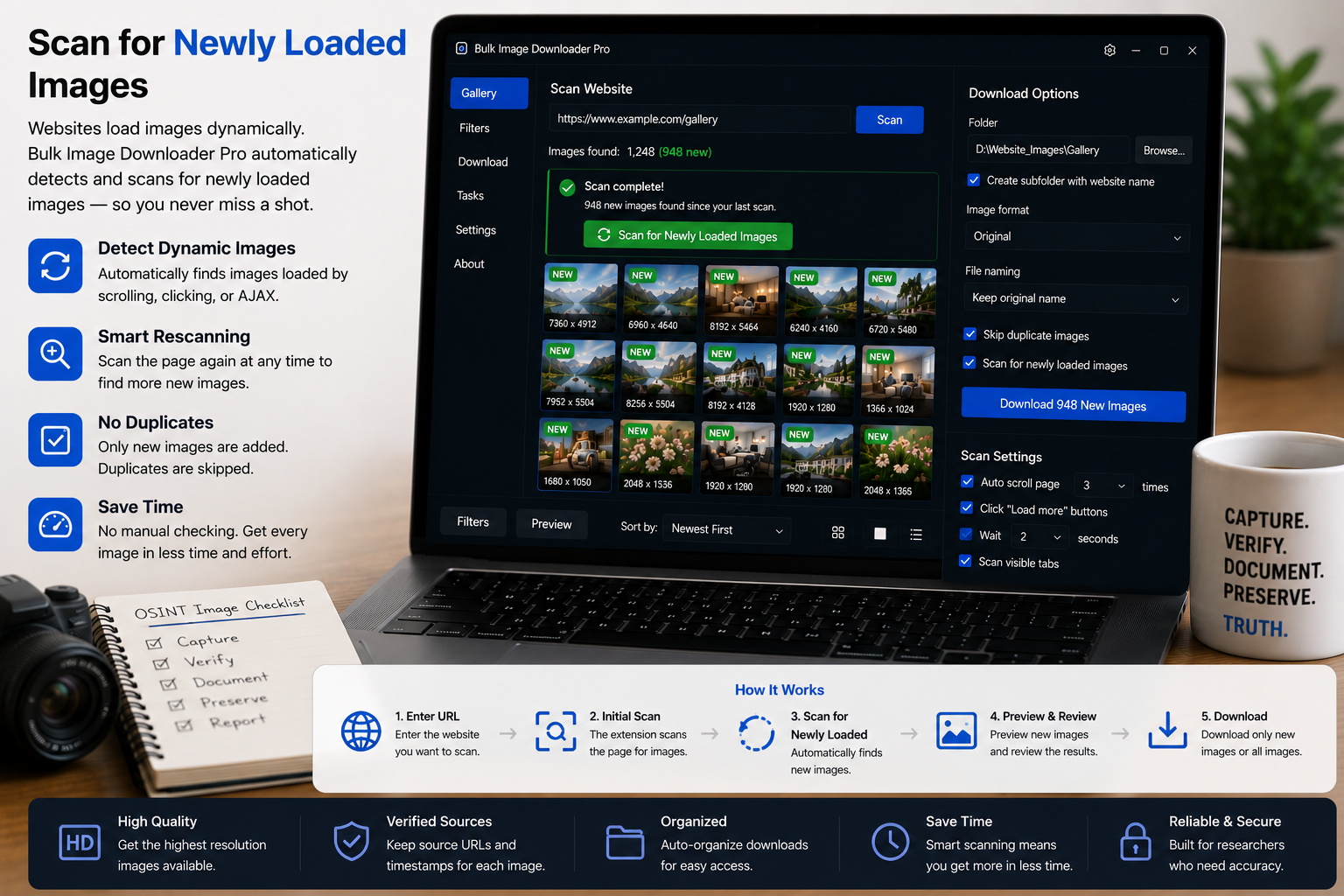
Not every missing image is below the fold. Some pages keep producing new pictures after you land: live event galleries, auction rotations, social-style feeds, and AJAX panels that append cards on a timer. A one-time scan captures the first wave and then goes stale.
To scan for newly loaded images, use Continuous Scanning in the side panel of the tool. It watches the open tab for DOM changes and triggers fresh scans when the page adds or swaps image markup.
What Continuous Scanning does
When you enable the Continuous scanning checkbox, the extension installs a mutation observer on the page and polls for change signals while the checkbox stays on. If the page updates, the side panel can rescan and append new URLs to your results without you clicking scan again.
Think of it as monitoring the page over time rather than taking a single photograph of it.
When this mode helps
- Live feeds: streams that post new thumbnails while you watch
- Auctions and marketplaces: listings that refresh inventory shots
- Event coverage: galleries where uploads trickle in during a match or conference
- AJAX panels: sections that fetch more media in waves after the first paint
If images only appear after you scroll down, that is usually lazy loading, not live updates. Start with download lazy-loaded images and Deep Scan instead.
How to run a clean monitoring session
- Open the page and run an initial Scan Current Page so you have a baseline.
- Enable Continuous scanning in the side panel.
- Leave the tab open and in view while the page updates. Scanning is most reliable when the tab is active.
- Watch the result count grow, then disable Continuous Scanning when you have enough.
- Filter by dimensions or file type so icons and ads do not pile up during a long watch.
- Deduplicate identical URLs in the preview before sending URLs to a download task.
Continuous Scanning vs Deep Scan vs Area Scan
Each mode answers a different question:
- Scan Current Page: what is visible right now
- Deep Scan: what appears as the page scrolls and lazy content loads
- Continuous Scanning: what appears later while the page keeps changing
- Area Scan: what sits inside one region you draw on the page
They are separate controls, not one combined mode. Area Scan turns Continuous Scanning off when you start a region selection, because the extension pauses automated rescans so your boxed results stay stable.
Expect duplicates on live pages
Updating templates often reinsert the same image URL when a card refreshes. That is normal. Use the side-panel duplicate check for identical URLs, then apply preview filters. If you later send URLs to an options-page task, Licensed PRO includes additional review tools there, but the side-panel pass is usually enough for URL-level repeats.
Limits to keep in mind
Continuous Scanning only sees what the open tab can load. It does not fetch server files you cannot view, and it depends on the page actually changing in the DOM. If nothing new appears in the browser, the scanner has nothing new to collect.
For infinite-scroll listings where the page grows as you move down, pair this article with infinite scroll image download guidance.
Install the Chrome extension and enable Continuous Scanning the next time a page keeps adding images after the first load.
Continue reading: Download Images from Part of a Webpage With Area Scan.