
Strip EXIF Metadata from Images — What It Removes and When to Use It
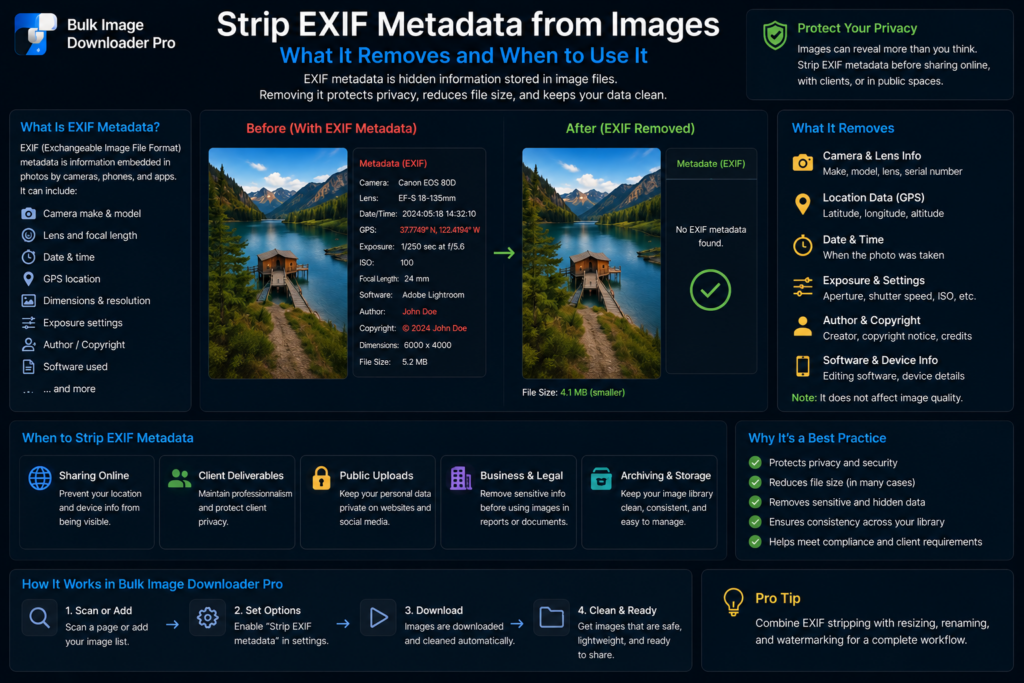
A photo can look like nothing but pixels on screen while still carrying hidden details inside the file. Camera model, capture time, orientation data, and sometimes GPS coordinates may travel with the image wherever it is copied, uploaded, or emailed.
Knowing when to strip EXIF metadata from images helps you share files deliberately instead of accidentally.
What EXIF metadata is
EXIF stands for Exchangeable Image File Format. It is descriptive data embedded in many camera and phone photos, stored alongside the visible image rather than shown as part of the picture itself.
Common EXIF fields include:
- Capture date and time
- Camera or device make and model
- Exposure, aperture, ISO, and focal length
- GPS coordinates when location was enabled
- Orientation and embedded thumbnail previews
That metadata can be useful for personal archives and photography workflows. It becomes a problem when the same file is published publicly or handed to people who should not see where or when it was captured.
Why EXIF matters for privacy
Location is the biggest concern for many users. A photo taken at home, at a client site, or during a private event may include exact coordinates. Timestamps and device details add context you may not intend to share.
Some platforms strip metadata on upload, but direct downloads, file shares, CMS uploads, and email attachments often preserve it. Do not assume EXIF disappears just because the image looks normal in a viewer.
How stripping works in a download workflow
Bulk Image Downloader From URL List removes metadata by re-encoding supported image files through the browser canvas pipeline. The saved output is a new image file rather than the original binary with metadata attached.
This works best for common web formats such as JPEG, PNG, and WebP. It is practical cleanup for publishing and delivery workflows, not a forensic metadata editor for every possible file type.
Enable Strip EXIF Data on a download task when metadata cleanup is the main goal. Resize and convert operations also re-encode images, which naturally drops embedded metadata in the processed output.
When to strip and when to keep it
Strip EXIF when files will be public, shared externally, delivered to clients, or republished in places where location and device details should not travel with the image. Keep it when you are archiving originals for personal cataloging or editing and the capture data is genuinely useful.
Before a large batch, ask three quick questions:
- Will these files leave my direct control?
- Could location or timestamp data reveal more than I want?
- Do I need the capture record later?
If privacy wins, strip it. If the metadata is part of the value, keep the originals and clean only the copies meant for sharing.
Where stripping sits among the processing tools
Stripping metadata is a download-side processing option, grouped with resize, convert, and watermark. Those tools are part of Try PRO or Licensed PRO, with Try PRO still limited to one link per download. So a batch built mainly to remove EXIF is not a free-tier run, even though pasting a URL list and saving it is.
There is also a packaging choice attached to the same decision. Output saves as loose files or one ZIP, and a ZIP keeps the Downloads folder tidy on large batches while very large ZIPs can still fail. For a stripping pass across many files, the package choice is part of planning the run.
Continue reading: why image URLs redirect.
A repeatable setup means saving the rules once; the next similar URL list then takes seconds.