
Gather moodboard reference images in bulk
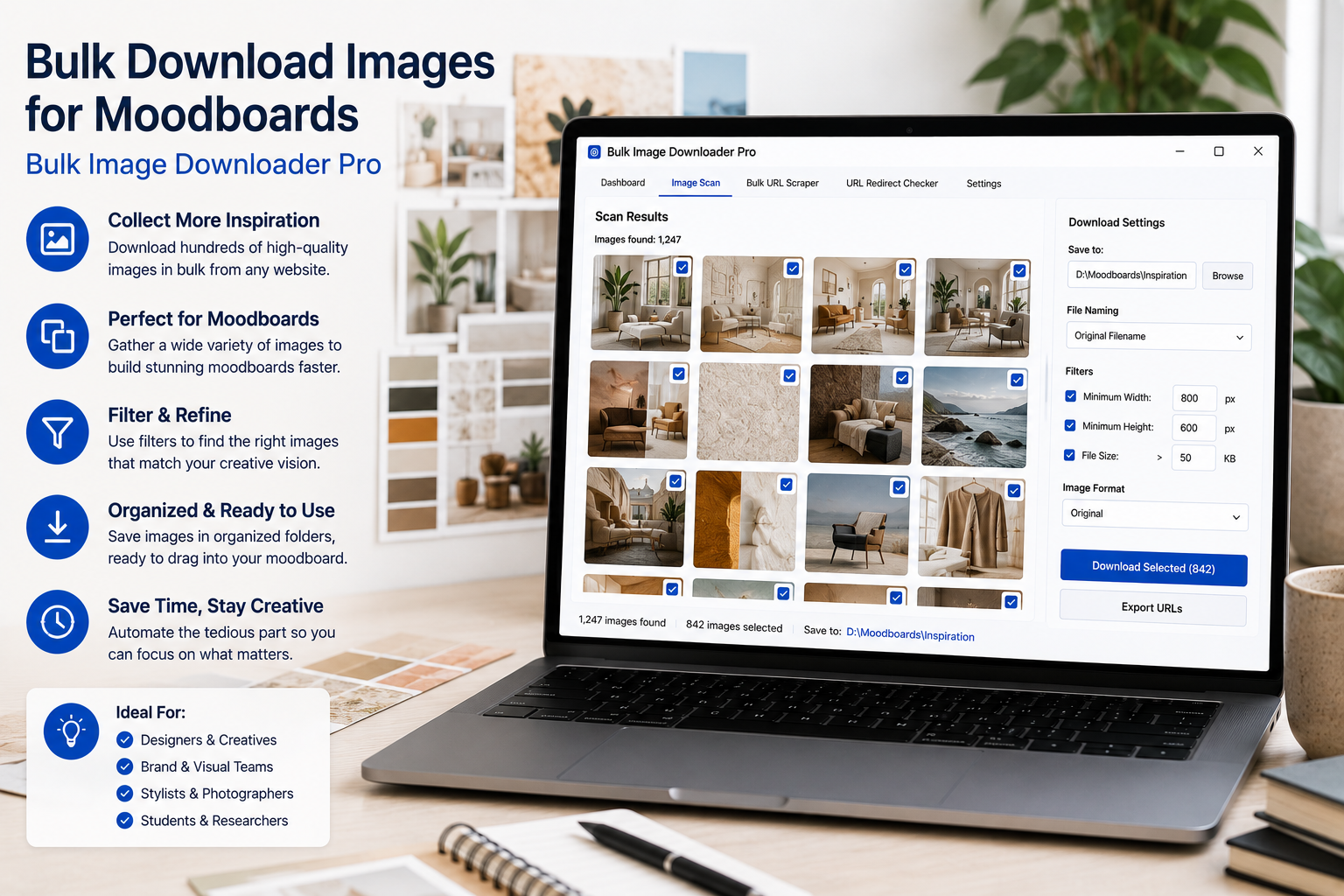
Moodboards depend on references: color, layout, typography, packaging, interiors, photography, texture, product shots, and visual direction. The creative work is deciding what belongs together. The boring part is saving references one by one and cleaning up the folder afterward.
Bulk Image Downloader From URL List helps with the collection step. It can scan browser-accessible inspiration pages, gather candidate images, filter out low-value results, remove repeats, and save an organized folder for your project. Use it for references you are allowed to collect, and keep inspiration separate from assets you plan to publish.
Collect from pages, galleries, or URL lists
For one inspiration page, open the side panel and run Scan Current Page. If the page is a scrolling gallery, use Deep Scan so lazy-loaded images have a better chance to appear in the result grid. If you only want one section of a page, use Area Scan to target that region.
When a project has several source pages, paste them into Bulk URL Scraping or load them from a file. Set a delay between pages and keep the run small enough to review properly. A moodboard is not helped by collecting thousands of unreviewed images.
Filter for references that fit the brief
The side panel filters make a broad scrape useful. Set minimum dimensions so you do not collect tiny thumbnails. Use aspect ratio filters when the board needs a specific shape, such as portrait references for editorial work or landscape imagery for hero sections. Use file type and domain filters to remove formats or hosts that do not belong in the set.
Text search can also help when image URLs, alt text, or titles include useful terms. It is not a substitute for visual judgment, but it can narrow large collections around a material, color, brand term, or subject.
Review thumbnails before creating the task
Turn thumbnails on and scan the results like a designer, not a crawler. Remove UI graphics, banners, logos, and images that do not match the direction. Use exact URL deduplication to clear repeated links before the download task is created.
If you later find visually repeated references under different URLs, use the Perceptual Duplicate Finder on the options page to review similar images and choose which copy to keep.
Organize the folder for design work
When the collection is ready, send it to the options page. Use folder names that match the moodboard structure: project, client, concept, color story, typography, layout, texture, or campaign. The filename constructor can add custom text and sequence numbers so files sort predictably in Finder, Explorer, or your design tool.
If your moodboard tool prefers one format, convert supported images during download. If you want lighter files for quick sharing, resize to a practical maximum. Keep originals when quality matters more than convenience.
Keep inspiration and rights clear
Moodboards are often internal reference documents, but image rights still matter. Do not treat downloaded inspiration as stock photography. Keep folders labeled clearly, use licensed or owned images for publishable work, and avoid mixing inspiration references with final deliverables.
Used with that discipline, Bulk Image Downloader From URL List turns reference gathering into a faster, cleaner workflow: collect, filter, dedupe, organize, then spend your energy arranging the board.
Continue reading: image workflow from scrape to organized folder.