
Dark Mode Image Downloader
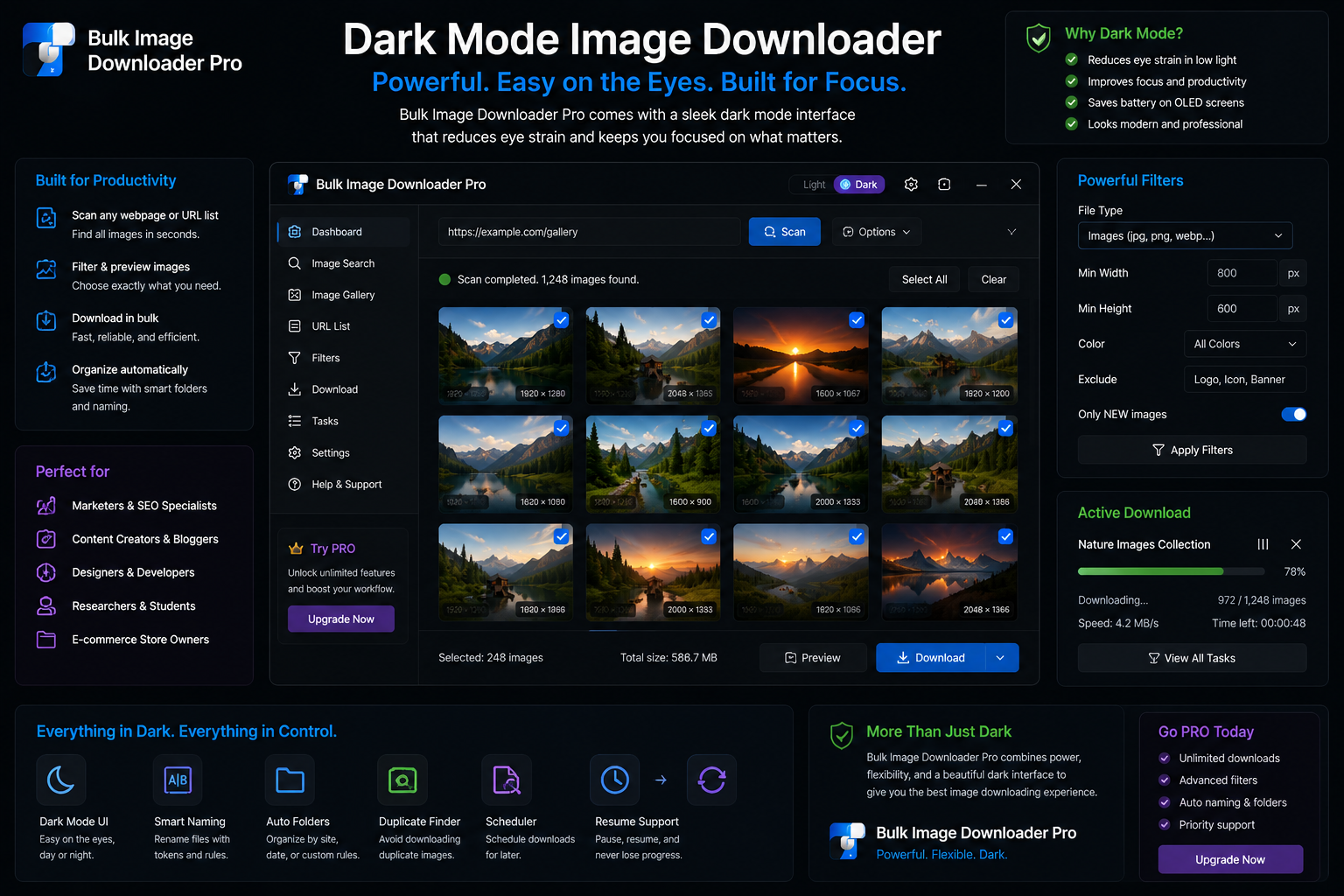
Long review sessions strain your eyes when bright chrome surrounds the thumbnails you are judging. A dark mode image downloader interface keeps focus on the pictures instead of the panel glare.
Bulk Image Downloader From URL List includes a dark theme on both the options page and the side panel scraper. Toggle it once and the preference sticks in chrome.storage.local until you change it.
Toggle in one keystroke
Press Ctrl/Cmd + Shift + D on the options page to flip between light and dark instantly. The main dark-mode switch, essential-info toggle, and keyboard shortcut stay synced.
The side panel has its own Dark Mode checkbox that reads the same stored preference, so theme choice follows you between scraping and task editing.
Why dark UI helps image work
- less glare during long preview, filter, and duplicate-finder sessions
- thumbnails sit on a neutral backdrop instead of competing with bright panels
- fits better beside other dark creative tools you may already use
In the side panel, grid view shows thumbnails edge to edge; table view lists URLs and metadata. Dark mode keeps both readable without the page glowing back at you.
Preference persists
When you enable dark mode, the extension saves darkMode: true in browser storage. Reloading the options page or reopening the side panel restores the same theme automatically.
Layout choices such as collapsed controls and docked toolbar visibility are also remembered locally, so your workspace returns the way you left it on the same profile.
Part of a comfortable long-session setup
Dark mode pairs naturally with other ergonomics in the tool:
- Ctrl/Cmd + / opens the shortcut cheat sheet without leaving the page
- the essential info bar shows queue and license state at a glance
- draft save protects long edits while you curate lists
None of this changes download behavior. It makes the hours you spend inside the extension easier on your eyes.
Install the extension, press Ctrl/Cmd + Shift + D, and leave dark mode on for evening review passes.
Continue reading: Resume Interrupted Image Downloads.
Set it before the page paints
Because the choice is saved rather than applied on each load, the theme can be switched on before the first paint instead of showing a bright panel and then going dark. You notice it most when you open the side panel at night: there is no white flash between clicking the icon and seeing your images.
Dark mode across all three layouts
Classic, Browser, and Pipeline draw different screens, but the theme is stored once for your Chrome profile, not per layout. Switch layout and the theme follows. The Ctrl/Cmd + Shift + D shortcut works in Browser and Pipeline; Classic has its own dark-mode switch on the settings screen.
What dark mode does not change
The theme only affects the extension’s own screens. Chrome’s download shelf, the folder picker, and the file dialogs you see when you choose where files go still follow your operating system. Dark mode is a reading and reviewing aid, not a change to how files are saved.