
Rename Downloaded Images With Sequential Numbers
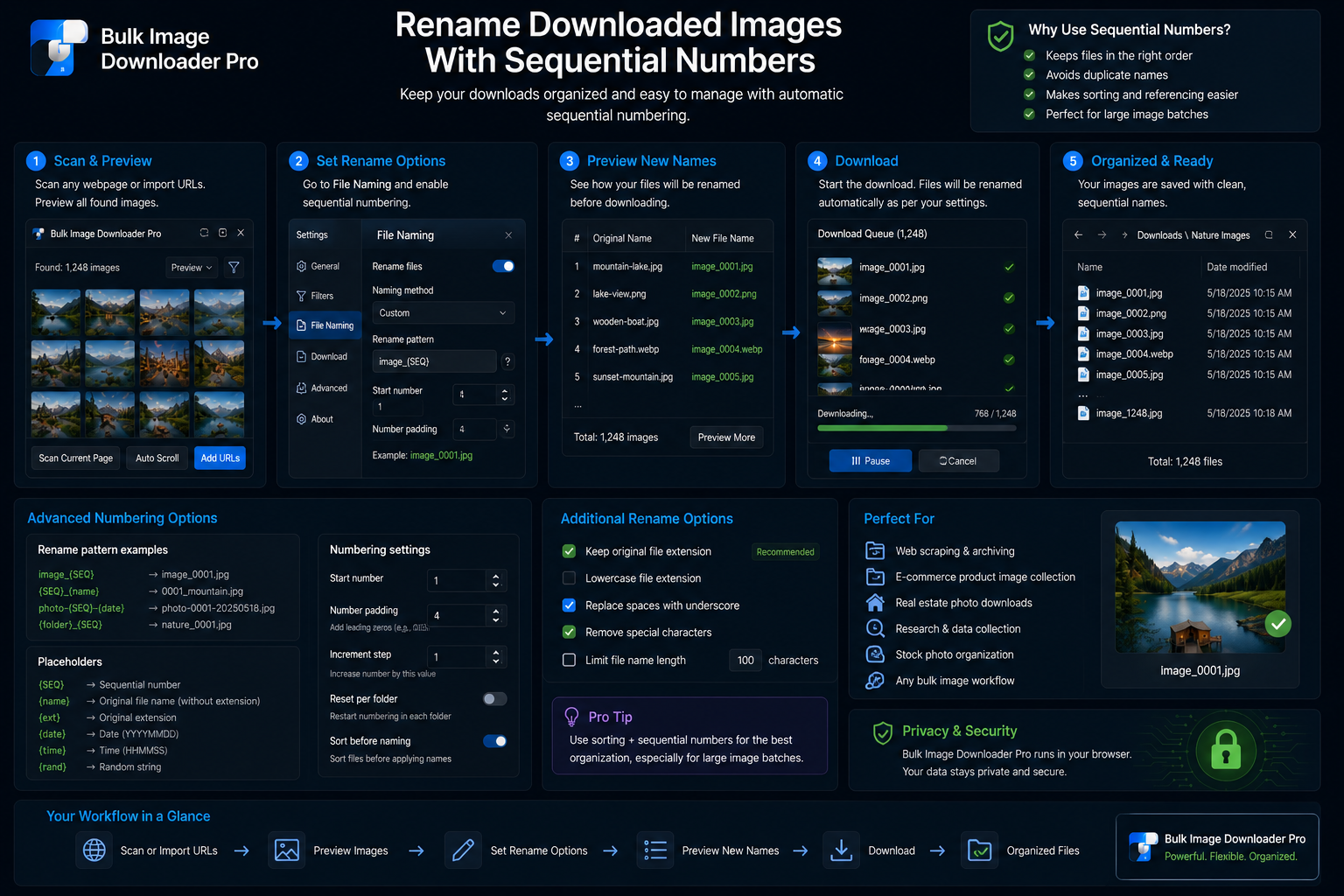
Server filenames like a8f3c2b1.jpg sort badly and tell you nothing about the set. If you need a gallery, catalog, or archive that reads in order, you want to rename downloaded images with sequential numbers as they save, not in a second pass afterward.
Bulk Image Downloader From URL List does that on the options page through the Filename Constructor: you assemble a pattern from tokens, set where numbering starts, and each download follows the same structure.
Turn on the Filename Constructor
On a task row, enable Filename Constructor. A sortable list appears where you add and reorder filename parts. The final .extension segment is handled automatically based on the real file type, so you build the base name only.
Build the pattern from tokens
Add segments from the dropdown, then drag them into the order you want. Useful built-ins include:
- Sequence for auto-incrementing numbers
- Timestamp for a capture-time stamp
- Filename for the original server filename stem
- Website and URL Fragments for source-based labels on URL tasks
- Segment N options pulled from URL path pieces
- Add New for literal prefix or suffix text you type
A practical product set might look like catalog-001.jpg, catalog-002.jpg, and so on by combining a fixed label with a Sequence token.
Set the sequence start and padding
When Sequence is in the pattern, a Sequence start field appears. Enter the first number, such as 1 or 001. The extension also supports sequence padding so multi-digit numbering stays aligned in file managers.
Pair numbering with Respect order on the task when download order must match your URL list or scrape order. That keeps page-one images ahead of page-two images in the finished filenames.
When to use custom filenames instead
Sequences are ideal for large anonymous batches. When every file already has a human-chosen name, upload a .txt or .csv list through Custom Filenames from File instead. The count must match your URL count exactly.
You can also read import custom filenames from CSV for keeping those explicit names through task export and re-import.
Licensed PRO requirement
Filename Constructor controls are part of the advanced options-page task workflow on Licensed PRO. Side-panel scraping remains free; naming patterns apply when you configure and run download tasks.
A quick setup checklist
- paste or scrape your URL list into the task
- enable Filename Constructor and add Sequence plus any labels you need
- set sequence start (and padding if you use fixed-width numbers)
- turn on Respect order when source order matters
- run a small test download, then scale up
For broader naming patterns beyond numbering, see customizing filename patterns.
Install the extension and build the pattern once so every image in the task saves with readable, ordered names.
The plan gate that sits behind the sequence controls
Filename Constructor and the custom filename file upload need Try PRO or Licensed PRO. Basic (Free) supports URL-list downloads but not the advanced naming patterns, so sequence start and padding are not available on the free tier. Within the paid tiers, Try PRO still allows one link per download, which limits how a long list of sequence rules is applied.
Licensed PRO removes the one-link cap and allows more than one download, which is the plan that suits a pattern applied across many pictures in one task. Worth confirming before you build a naming scheme that assumes a single long list.
Continue reading: Import Custom Filenames From CSV.