
Advanced Image Filter Preview
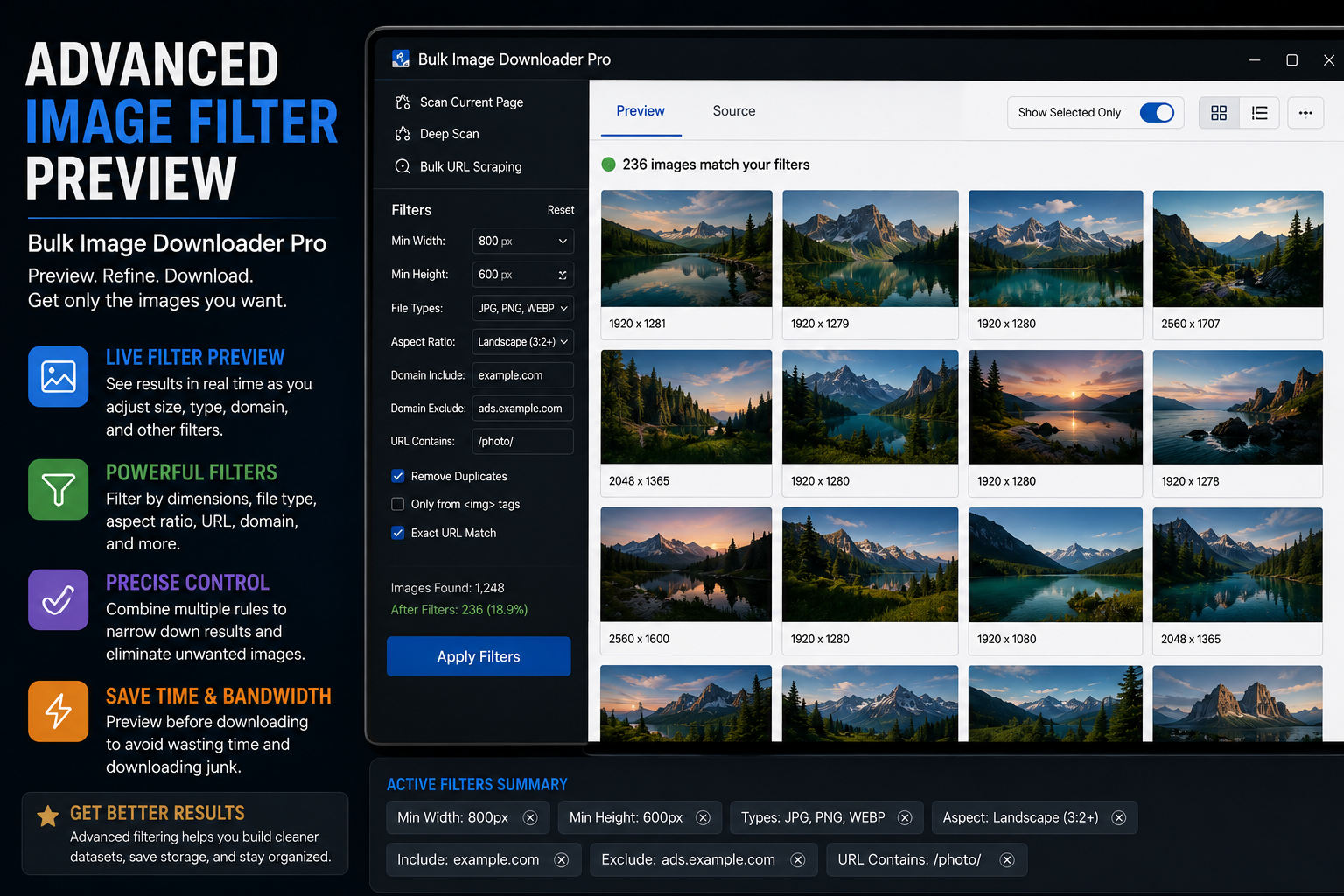
Most preview tools are read-only: you look, you close, nothing changes. When you need to preview images before downloading and actually trim the list, the Advanced Image Filter tab on the options page in the tool edits your saved tasks in place.
Preview that changes the task
Turn on Show Preview to load thumbnails for URLs in your tasks. The tab previews images only; it does not start downloads. While you review, filters and bulk actions update the underlying task URL lists and counters so what you download matches what you curated.
Advanced Image Filter is a Licensed PRO options-page feature. In Basic mode the tab is visible but tier-locked; Try PRO or Purchase PRO unlocks preview and cleanup controls.
Filters available in preview
Use the same style of controls you would expect when narrowing a messy scrape:
- Search by text in the URL or folder name
- Task scope for one task or all tasks
- Size presets (small, medium, large) plus custom min/max width and height
- Format (JPG, PNG, WebP, GIF, AVIF, and many more)
- Shape (square, horizontal, vertical)
- Aspect ratio with comparison operators
- File size range in KB or MB
Pagination lets you review 10 to 1000 thumbnails per page. Large lists can take time to load; save a draft first if you are working with thousands of URLs.
Actions that edit tasks directly
Three cleanup actions matter most:
- Remove Selected — deletes checked images from their tasks
- Keep Filtered Only — removes everything that does not match your current filters
- Remove Duplicates — drops repeated URLs across tasks, keeping the first occurrence
Selection helpers include Select All, Select Filtered, and Deselect All on the current page. Because changes write back to task storage, there is no export-delete-reimport round trip and no drift between what you see and what downloads.
Typical cleanup pass
- scrape or import broadly into a task
- open Advanced Image Filter and enable Show Preview
- filter by dimensions to surface tiny tracking images, select them, and remove selected
- search the URL for a pattern that marks files you want, then use Keep Filtered Only
- run Remove Duplicates if the same URL appears in multiple tasks
- return to the task and Save & Download
This sits between collection and download: catch judgment calls your eyes can make but filters alone cannot.
How it pairs with other tools
Run the 404 checker first to drop dead links. Use the visual duplicate finder when copies look alike but URLs differ. Use preview when you need human review before spending bandwidth.
For a lighter preview-only overview, see preview images before bulk download.
Install the extension and make preview the step where reviewing becomes real cleanup.
Where preview sits among the other tools
Home groups the optional tools as tiles, and preview belongs to that set. Filter images and Find duplicates open on top of Home, while Check redirects and Find broken links open in their own window. Tiles such as Folders, Original size, All file types, Schedule later, and Custom names jump to that part of a download instead of opening a tool.
Knowing which tile does which avoids a common confusion: preview and filtering edit the list you are about to save, whereas redirect and broken-link checks investigate the links themselves in a separate window. The main Home button remains New download throughout.
Continue reading: Image Downloader Keyboard Shortcuts.