
Import Custom Filenames From CSV
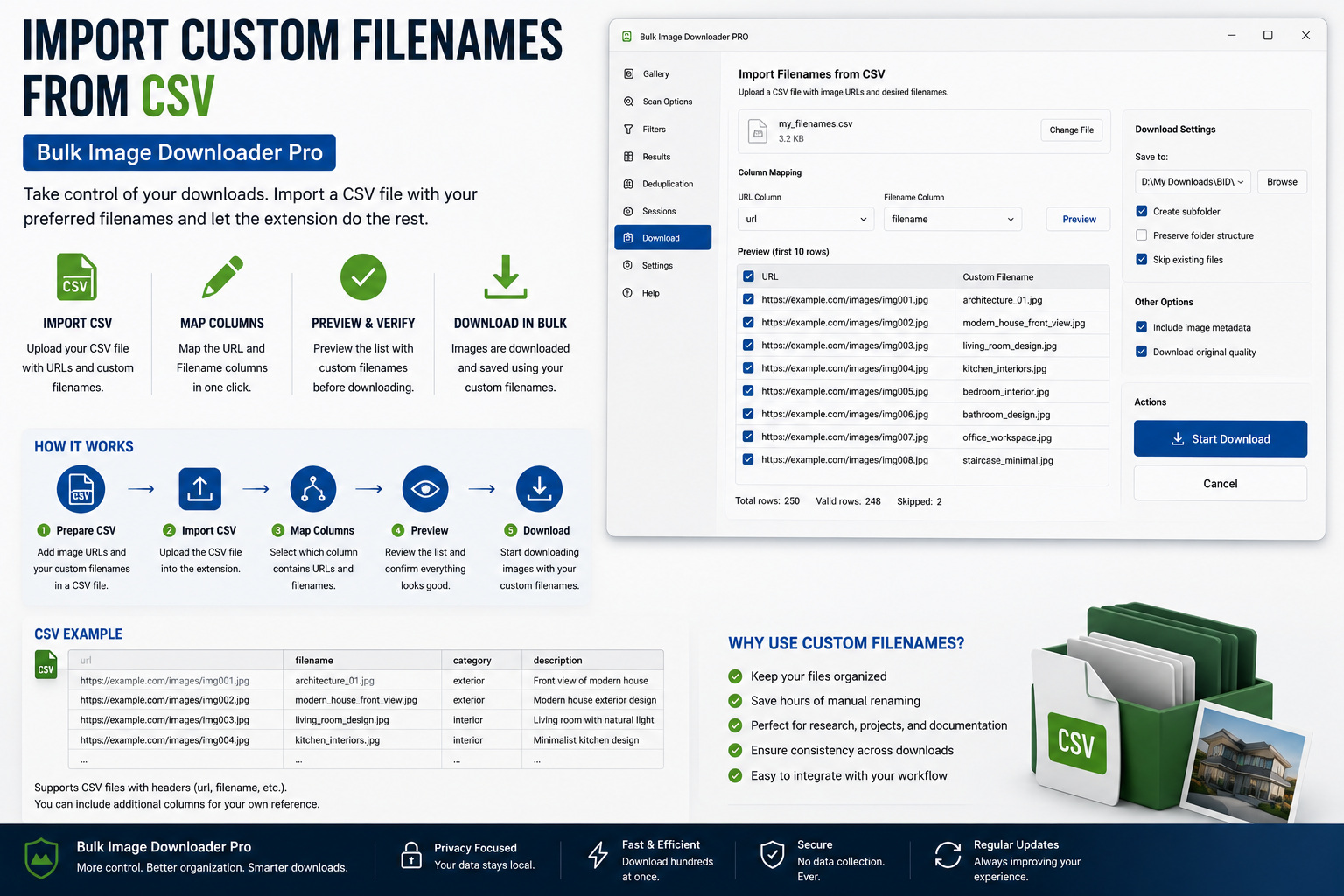
You mapped three hundred URLs to three hundred exact filenames. The last thing you need is that work disappearing when you export the task, switch machines, or rebuild the batch next month.
To import custom filenames from CSV (or plain text) in the extension, you have two related paths: upload a per-task name list, or restore names from a full task CSV backup.
Path 1: upload a name list on the task
In the Filename Constructor, add Custom Filenames from File to the pattern. An upload control appears for a .csv or .txt file with one filename per line, without extensions required in the list because the task still applies the real file extension on download.
Rules the extension enforces:
- line count must match the URL count in that task
- avoid filesystem-invalid characters such as
< > : " / | ? * - keep each name under 200 characters
After upload, the names are stored on the task as customFilename.filenames and applied in list order when you download.
Path 2: restore names from task CSV export
When you Export Tasks to CSV, the file includes Custom Filename Enabled and Custom Filenames columns. Multiple names are packed into one cell separated by semicolons, alongside the rest of the task setup: URLs, folders, Filename Constructor HTML, resize settings, watermark JSON, and more.
Re-importing that CSV brings the custom filename list back with the task. The round trip is designed to preserve explicit naming work, not just the URL list.
CSV export works on all tiers. Bulk CSV import of full task files requires Licensed PRO. If you are on Basic (Free), you can still export for safekeeping and rebuild manually, or upgrade when you need one-click restore of multi-task backups.
When explicit names beat token patterns
Filename tokens and sequences are faster for large generic batches. Custom filename lists win when:
- marketing or legal already supplied final names
- SKU or asset IDs must match an external spreadsheet
- each image maps to a specific catalog row you prepared in Excel
- you are restoring a named batch from a CSV backup
A reliable backup habit
- finish mapping names to URLs on the task
- validate the upload (the UI reports URL vs filename count mismatches)
- run Export Tasks to CSV and store the file with your project assets
- re-import later on the same machine or another Chrome profile with Licensed PRO
For the wider export/import workflow, see export and import image download tasks. For auto-generated numbering instead of explicit lists, see rename downloaded images with sequential numbers.
Install the extension and treat careful filename mapping as durable project data, not a one-session detail.
The plan gate behind the name list
Uploading a custom filename file is not a free-tier action. Filename Constructor and the custom filename file upload need Try PRO or Licensed PRO, while Basic (Free) supports URL-list downloads without the advanced naming patterns.
Within the paid tiers the difference is scope, not naming. Try PRO allows one link per download, so a long list of names has to be applied a link at a time; Licensed PRO lifts that cap. If a naming sheet is the centre of the job, choose the plan before building the list.
Continue reading: Resize Images While Downloading.