
Bulk Image Download Workflow — From First Scan to Clean Export
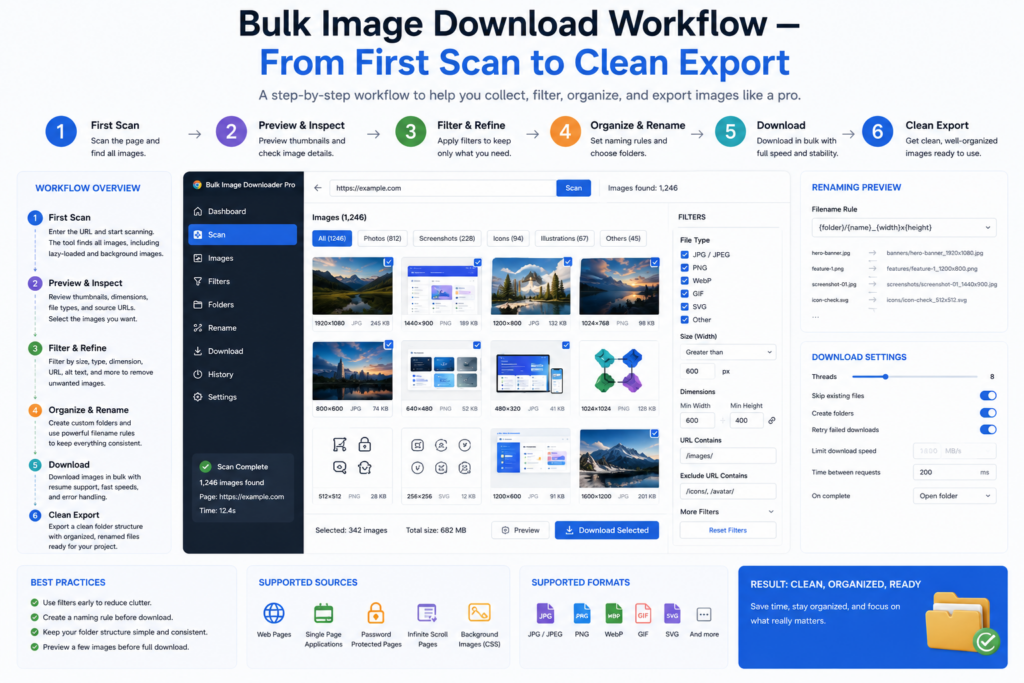
Downloading a few images is easy. Doing it well across dozens of pages is a process. Once you treat collection as a workflow instead of a one-click grab, the same job becomes faster the second and tenth time you run it.
A reliable bulk image download workflow usually moves through six stages.
1. Scan or scrape the source
Start by finding the images. Scan Current Page works for simple pages. Deep Scan helps with browser-visible lazy-loaded or AJAX content. For many pages, build a URL list and scrape them in sequence with a request delay when the site needs a slower pace.
The goal is a complete source set before you start deleting or renaming files by hand.
2. Filter down to useful assets
Most pages mix product photos, icons, banners, logos, and decorative assets. Use dimension filters, file type filters, aspect-ratio filters, domain filters, and text search in URLs or alt text to keep only what the project needs.
Filtering early saves cleanup time later.
3. Dedupe before you download
Exact URL deduplication removes repeated links quickly. The Perceptual Duplicate Finder can group likely visual matches, but those groups should be reviewed before removal because near-duplicates are not always worthless duplicates.
4. Rename with a predictable pattern
Server filenames are rarely project-ready. Use the Filename Constructor with tokens, sequence numbers, timestamps, URL fragments, or CSV/TXT custom names so files stay readable outside the extension.
Folder names and cleanup rules matter just as much when the batch will be handed to someone else.
5. Process only what the deliverable needs
Resize when dimensions must change. Convert when the final format must change. Strip EXIF when metadata should not travel with shared files. Add a PNG watermark when branded copies are required.
Resize and Convert are separate modes, so choose the processing pass that matches the job instead of assuming one combined step handles everything.
6. Export in the shape the project expects
Save loose files into task folders, package a set as ZIP, or export URL lists for audit and handoff. Redirect and 404 checkers can help clean the source list before a large run begins.
Make the workflow repeatable
The last step is reuse. Save scraper sessions when you may need to revisit a result set. Save rules when a site should be scanned the same way again. Export and import task CSV files when a team needs the same settings on the next batch.
Scheduled tasks can help with recurring jobs, but Chrome needs to remain open for scheduled runs to execute.
Scan, filter, dedupe, rename, process, export. That sequence gives you a practical map for almost any bulk image job and a cleaner handoff at the end.
The WordPress path runs beside the six stages
Sites built on WordPress with the connector take a different route through the same workflow. Instead of pasting a link list, you export from WordPress admin, import that ZIP into Browser or Pipeline, edit the pictures, titles, or alt text locally, then export a ZIP to send back and import it from the WordPress side. Nothing on the live site changes until that final import, so the editing stage is safe to repeat.
Two habits differ from the paste-a-list path. WordPress downloads do not use When or Download now — those belong to pasted link lists — so scheduling plays no part here. And there is no live sync: when the site’s list has changed, import the ZIP again to refresh the text and links. A staged return ZIP also expires after seven days, so export a fresh one if a handoff waits longer than that.
Continue reading: free vs pro image downloader.
With Bulk Image Downloader From URL List, CSV import and export help you move task setup between spreadsheets and Chrome without rebuilding filters by hand.
Messy source lists are the point — they come out as a filtered, named download set.