
Client-Side Image Processing — Local Browser Workflows vs Cloud Upload Tools
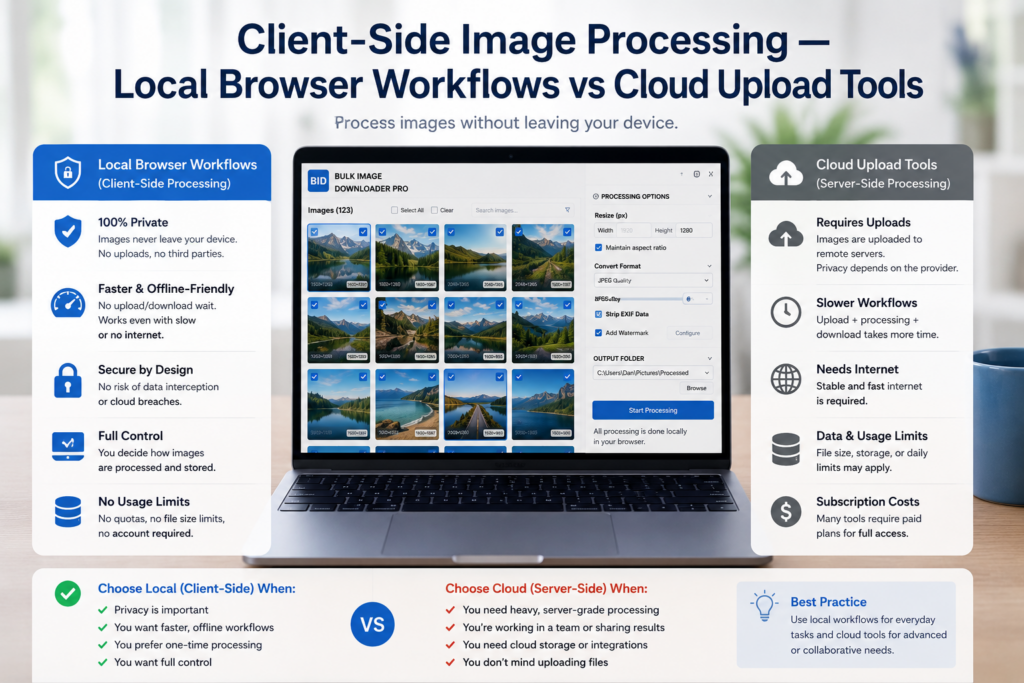
What client-side processing means
In a local browser workflow, the extension downloads images from their source URLs, then applies processing such as resize, convert, EXIF cleanup, or watermarking without sending those files to a separate processing server. That is different from cloud converters and hosted image pipelines, where every file typically transits a third-party system you do not control.Where local processing helps
- Privacy: sensitive client assets, internal screenshots, and location-bearing photos are not copied to an outside processor for transformation.
- Control: you are not depending on a remote queue, retention policy, or account system to finish the job.
- Batch overhead: large sets avoid the upload-and-download round trip that cloud tools add to every file.
- Offline-friendly processing: once images are available locally in the workflow, transformation can continue even when the connection is unstable.
Where cloud tools still make sense
Cloud services can be the better fit when teams need shared processing infrastructure, heavy server-side automation, or collaboration around one hosted pipeline. Some jobs also exceed what a single browser session should comfortably handle. The comparison is about workflow fit, not a universal winner. Privacy-sensitive bulk work often favors local processing. Shared enterprise automation may favor cloud systems.How Bulk Image Downloader From URL List fits the local model
the extension handles resize, convert, EXIF stripping, and PNG watermarking in the browser as part of download-task processing on the options page. Tasks, sessions, and settings are stored in browser storage rather than uploaded as processing jobs to a separate service. If your main concern is keeping transformation work off third-party servers, a client-side pipeline is usually the cleaner default for everyday bulk image downloads.More alternatives are covered in best bulk image downloader extensions.
Continue reading: bulk image download workflow.Once your rules are set, they are reused the next time a similar URL list comes up.
Where the files actually go
In a local workflow the images are fetched from their source URLs and processed in your browser, with image work running in a Web Worker so the interface stays responsive. Files you add yourself are held in IndexedDB on your device. Nothing is uploaded to a processing service in order for resize, convert, or EXIF stripping to happen.
The honest limits of local processing
Local processing is not automatically better for every job. If a source requires authentication, or an image is served from a host that blocks the request, the browser workflow cannot reach it regardless of where processing happens. Local is a strong default for privacy and privacy-sensitive files, not a claim that server tools are always the wrong answer.