Watermark images on download with a configured PNG watermark, opacity, position, margin, and size settings so large image batches come out consistently branded.
Schedule bulk image downloads in Chrome by preparing a task, choosing output settings, setting the run time, and keeping Chrome open when the scheduled task should start.
Learn how to extract images from a website with a Chrome workflow that scans pages, handles lazy-loaded images, filters noise, validates URLs, and turns the clean list into an organized download task.
A step-by-step guide to using Bulk Image Downloader Pro: scan pages, collect image URLs, filter results, create download tasks, set filenames, choose ZIP output, and run batches safely.
Bulk download images from a URL list by pasting direct image links into a task, cleaning duplicates, choosing folders or ZIP output, and running the batch in Chrome.
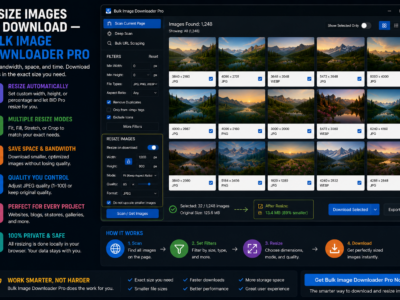
Resize images on download so large batches arrive closer to the size you need, with exact dimensions, fit-to-box resizing, percentage scaling, and optional JPEG/WebP/PNG conversion.
The best bulk image downloader depends on the job: page scanning, URL-list downloads, filtering, ZIP output, filenames, duplicate checks, and safe workflow limits.
A practical comparison of bulk image downloader extensions for Chrome, including when to choose simple page savers, URL-list downloaders, page scanners, filters, ZIP output, and filename controls.